

VRAM Calculator for Local LLMs: An Essential Free Tool to See How Much GPU Memory a Model Needs (2026)
A VRAM calculator for local LLMs, with the formula behind it: weights, KV cache and headroom. Checked against llama.cpp, Qwen3 configs and Ollama on October 28, 2026.
 bufferAbout the author8 min read
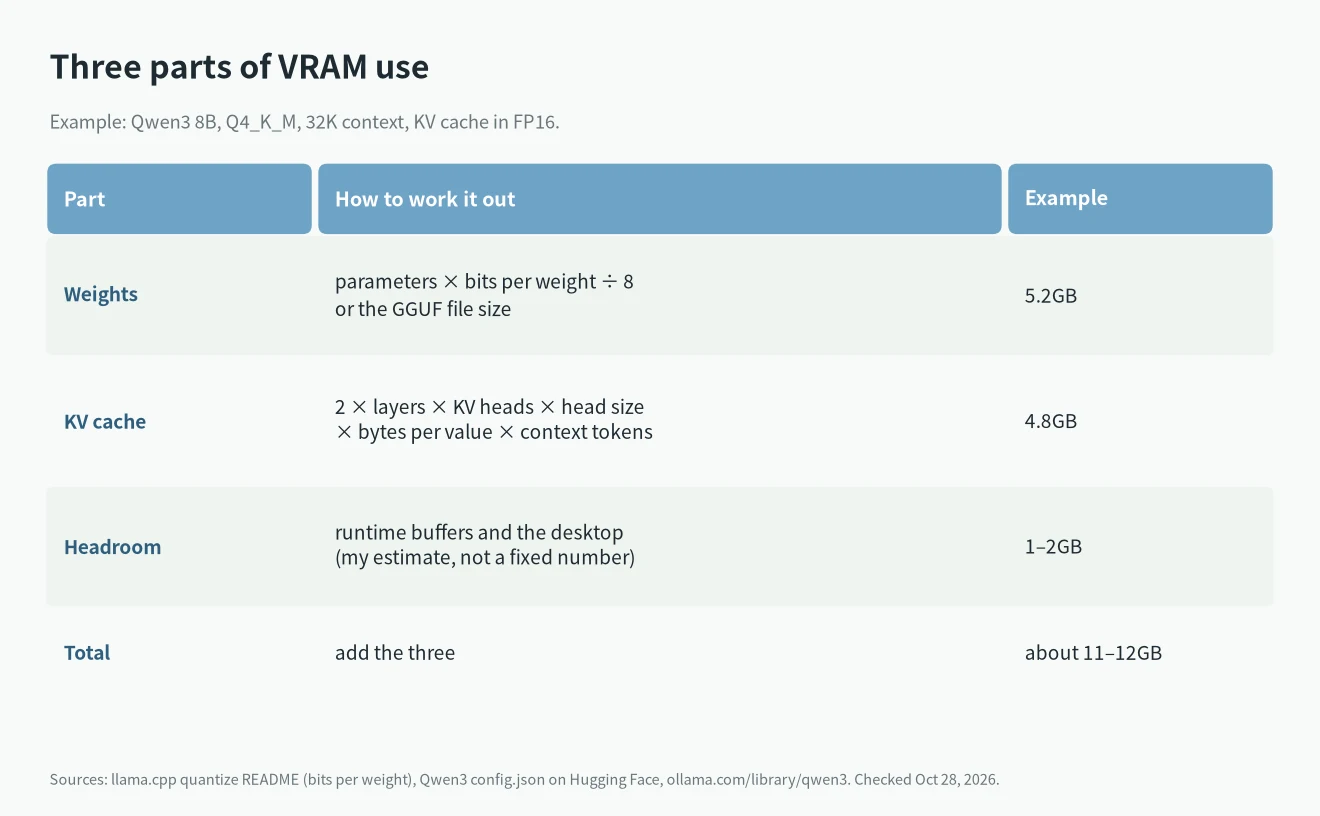
This VRAM calculator adds up the three things that use GPU memory when you run a local LLM: the model weights, the KV cache and some headroom. Take Qwen3 8B at Q4_K_M with a 32K context: the weights take about 5.2GB, the KV cache about 4.8GB, and with 1 to 2GB of headroom the total is 11 to 12GB. A quicker rule: at Q4_K_M, each billion parameters needs about 0.6GB, and then you add the KV cache for your context length. The bits per weight come from llama.cpp’s official quantization notes, the layer and head counts from Qwen3’s official config files on Hugging Face, and the file sizes from Ollama’s model pages. I checked all of them on October 28, 2026. To see which models suit each amount of VRAM, read the best local LLM for your VRAM.
Short answer
- Weights: parameters × bits per weight ÷ 8. Q4_K_M uses about 4.89 bits per weight, Q8_0 about 8.5, and FP16 16.
- KV cache: grows in step with context length. Qwen3 8B needs about 1.2GB at 8K tokens, 4.8GB at 32K and 19.3GB at 128K.
- Headroom: runtime buffers and the desktop also use VRAM. I leave 1 to 2GB. That is my own rule of thumb, not a fixed number.
- The most common mistake: looking only at the model file size and forgetting the context. A long context can make the KV cache bigger than the model itself.
VRAM calculator
Pick a model preset, then change the quantization and context length. The result updates as you type. For another model, choose “Custom” and enter its parameter count, layers, KV heads and head size. You can find these in the model’s config.json file, under num_hidden_layers, num_key_value_heads and head_dim.
KV cache:
Estimated total:
Estimate only. Real use varies by program and settings.
The calculator uses an f16 KV cache by default, which is also llama.cpp’s default. Headroom starts at 1.5GB, and you can change it.
The formula behind the VRAM calculator
Weights
Weight memory in bytes = parameters × bits per weight ÷ 8. llama.cpp’s quantization notes list measured bits per weight for Llama 3.1 8B: 4.89 for Q4_K_M, 5.70 for Q5_K_M, 6.56 for Q6_K, 8.50 for Q8_0 and 16 for F16. Qwen3 8B has 8.2 billion parameters, so Q4_K_M works out to about 5.0GB. The actual file on Ollama is 5.2GB, which is close. If you have already downloaded a GGUF file, its size is the more accurate number.
KV cache
To write each new token, the model uses the K and V values that every earlier token produced in every layer. These values are stored in the KV cache. KV cache size = 2 × layers × KV heads × head size × bytes per value × tokens. Qwen3 8B has 36 layers, 8 KV heads and a head size of 128. With f16 at 2 bytes per value, each token takes 147,456 bytes, so 32K tokens take about 4.8GB.
Headroom
Besides the weights and the KV cache, the inference program needs buffers for intermediate results. If the graphics card also drives your monitor, the desktop uses some VRAM too. This part changes with the software and settings, and there is no official number for it, so the calculator lets you set it yourself.
How quantization changes the weights
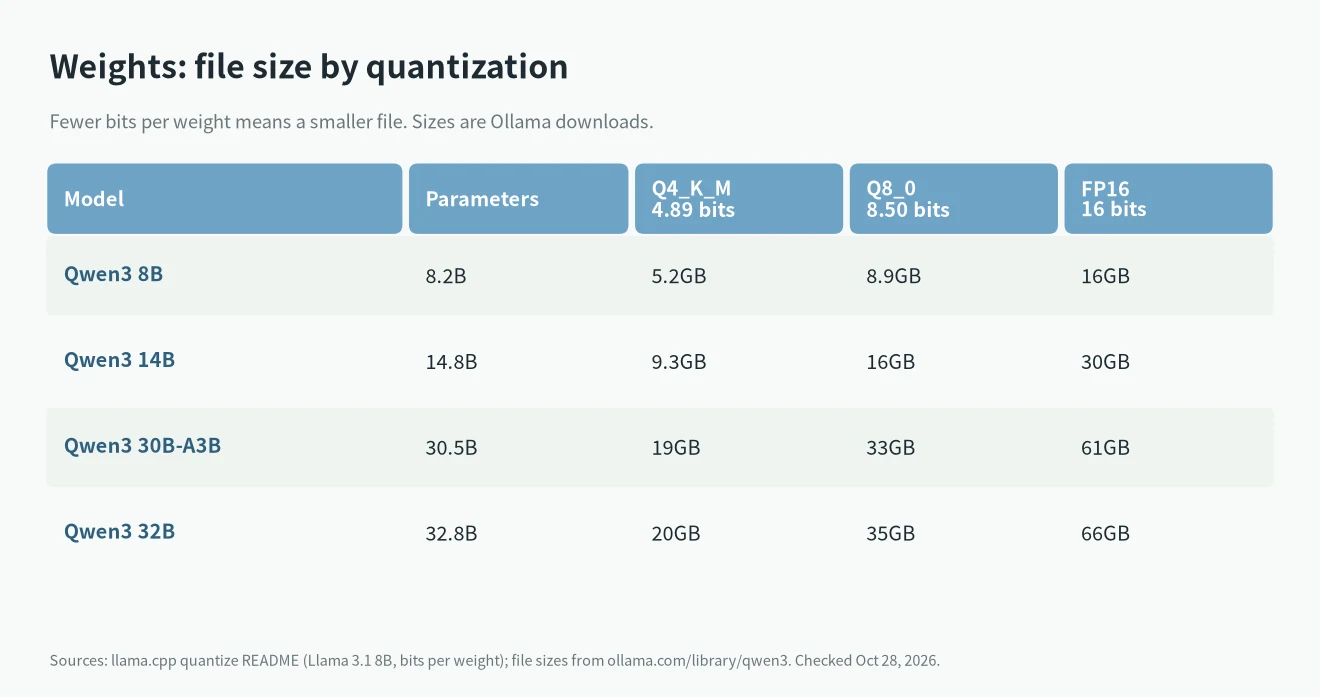
Quantization stores each weight in fewer bits. Going from FP16 to Q8_0 roughly halves the file. Q4_K_M brings it down to about 30% of FP16. For Qwen3 32B, Ollama lists 66GB for FP16, 35GB for Q8_0 and 20GB for Q4_K_M. For chat and coding, Q4_K_M is the most common choice. If you have enough VRAM, Q8_0 is closer to the original model.
How context changes the KV cache
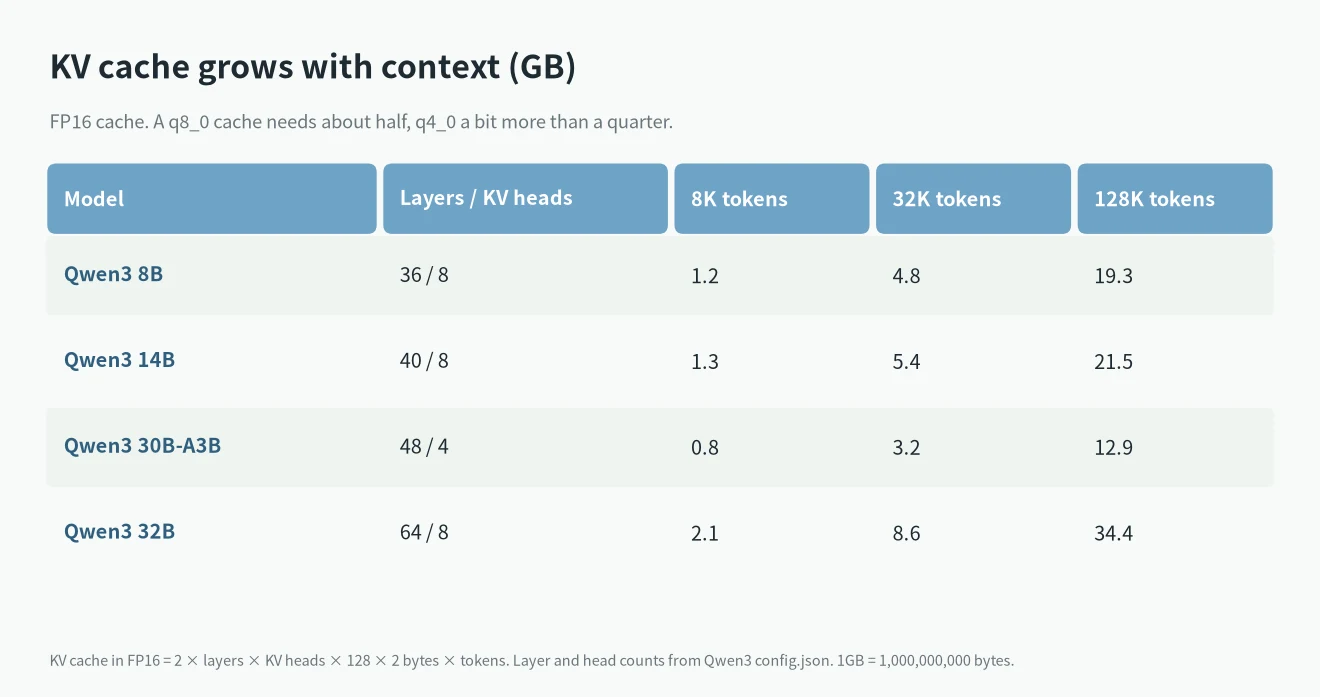
The KV cache depends on layers, KV heads and context, not on how the weights are quantized. Qwen3 32B has 64 layers. At 32K tokens its KV cache is about 8.6GB, and at 128K it is about 34.4GB, more than its Q4_K_M weights. Note that Qwen3’s model card gives a native context of 32,768 tokens; going up to 131,072 tokens requires YaRN.
In llama.cpp, the -ctk and -ctv options can store the KV cache as q8_0 or q4_0. q8_0 uses about 8.5 bits per value, roughly half of f16. q4_0 uses about 4.5 bits, a bit more than a quarter.
What fits in each amount of VRAM
These totals use Q4_K_M, an f16 KV cache and 1.5GB of headroom, all worked out with the calculator above:
| Model | 8K context | 32K context | VRAM to aim for |
|---|---|---|---|
| Qwen3 8B | about 7.9GB | about 11.5GB | 12GB or more, 16GB is comfortable |
| Qwen3 14B | about 12.1GB | about 16.2GB | 16GB or more, 24GB for long context |
| Qwen3 30B-A3B | about 21.3GB | about 23.7GB | 24GB or more |
| Qwen3 32B | about 23.6GB | about 30.1GB | 24GB is tight, 32GB is safer |
For what fits on a 24GB card, see What models can the RTX 4090 run. For 32GB, see RTX 5090 for AI.
How much GPU RAM do you need for an LLM?
Short version: the weights file plus the KV cache for your context plus 1 to 2GB. At Q4_K_M that comes to roughly 0.6GB per billion parameters before the KV cache. In practice, an 8B model needs a 12GB card, a 14B model 16GB, a 32B model 24 to 32GB, and a 70B model about 48GB or more. How much GPU RAM an LLM needs depends far more on the parameter count and quantization than on the brand of card.
A common example people ask about is the VRAM for gpt-oss-120b. OpenAI’s model card says it has 117 billion parameters (5.1 billion active) and, with its MXFP4 weights, fits on a single 80GB GPU such as an H100. Ollama lists the download at 65GB. Its config.json has 36 layers, but only 18 use full attention (8 KV heads, head size 64); the other 18 keep just a 128-token window. So the KV cache is small: about 1.2GB at 32K and 4.8GB at the full 128K. Total: about 68GB at 32K and about 71GB at 128K. A 64GB machine cannot hold it; 80GB of VRAM or 96 to 128GB of unified memory can. The smaller gpt-oss-20b is 14GB on Ollama and needs about 16 to 19GB in total, which matches OpenAI’s “within 16GB” claim only at shorter contexts.
RAM requirements for LLM models work the same way when you offload: whatever does not fit in VRAM has to sit in system RAM, so VRAM plus free system RAM must cover the total. It will run, just much more slowly.
MoE models: count every parameter
Qwen3 30B-A3B is a mixture-of-experts (MoE) model. It has 30.5 billion parameters in total, but only 3.3 billion are active for each token. Fewer active parameters make it fast, but the weights of all the experts still have to be in memory. So when you use a VRAM calculator for an MoE model, enter the total parameter count, not the active count. It also has only 4 KV heads, so its KV cache is smaller than Qwen3 8B’s at the same context.
When you do not have enough VRAM
- Use a lower quantization: going from Q8_0 to Q4_K_M cuts the weights by about 40%.
- Shorten the context: if you are not reading long documents, set the context to 8K or 16K. The KV cache shrinks a lot.
- Quantize the KV cache: add -ctk q8_0 -ctv q8_0 in llama.cpp to roughly halve the KV cache.
- Put some layers in system RAM: llama.cpp’s -ngl option sets how many layers go on the GPU. The rest stay in system memory. The model runs, but much more slowly.
- Use a machine with unified memory: on a Mac or an AMD Ryzen AI Max+ 395 machine, the CPU and GPU share memory, so larger models fit.
Macs and unified memory
A Mac has no separate VRAM. The model sits in unified memory, and the math is the same: weights plus KV cache plus headroom. The difference is that macOS uses the same memory, so leave more headroom. For specific machines, see Mac mini for local LLMs and M5 for local LLMs. With a bigger budget, see DGX Spark vs Mac Studio. If you want a local model for coding, see Local LLM for coding.
FAQ
How much VRAM does a 7B or 8B model need?
Qwen3 8B at Q4_K_M needs about 8GB with an 8K context and about 11.5GB with a 32K context. A 12GB card can run it, and 16GB is more comfortable.
How accurate is a VRAM calculator?
The weights and KV cache are worked out from the official model configs, so they are close. Headroom depends on the software and settings, so the total is an estimate. In practice, leave about 1GB more than the result.
Why does a long context use so much more VRAM?
The KV cache grows in step with context length. Four times the context means four times the KV cache. For Qwen3 32B, going from 32K to 128K tokens raises the KV cache from about 8.6GB to about 34.4GB.
How much VRAM does gpt-oss-120b need?
About 68GB at a 32K context and about 71GB at 128K: 65GB of MXFP4 weights, a small KV cache and headroom. OpenAI says it fits on a single 80GB GPU.
Is the model size Ollama shows the VRAM I need?
No. Ollama shows the file size, which is the weights. When the model runs, you also need the KV cache and headroom. The calculator on this page adds both.