

Best Claude Code Hooks: 6 Configs Worth Copying First (2026)
Six hooks from Anthropic's docs with configs you can paste, plus the events you'll use, where each hook file lives, and the safety notes.
 bufferAbout the author8 min read
The Claude Code hooks worth adding first are these six: a desktop alert, auto-format after edits, a guard for files like .env, context re-injection after compaction, a log of every Bash command, and a test check before Claude stops. The first five are plain command hooks you can paste in. The last one uses an agent hook, which Anthropic marks as experimental. The difference from a Skill is simple: a Skill is something Claude reads and may or may not follow, while a hook runs every time its event fires.
Every config below comes from Anthropic’s hooks guide and the hooks reference, checked on October 27, 2026. If you’re still sorting out hooks, Skills and MCP, start with Claude Code Skills vs MCP.
Six hooks to add first
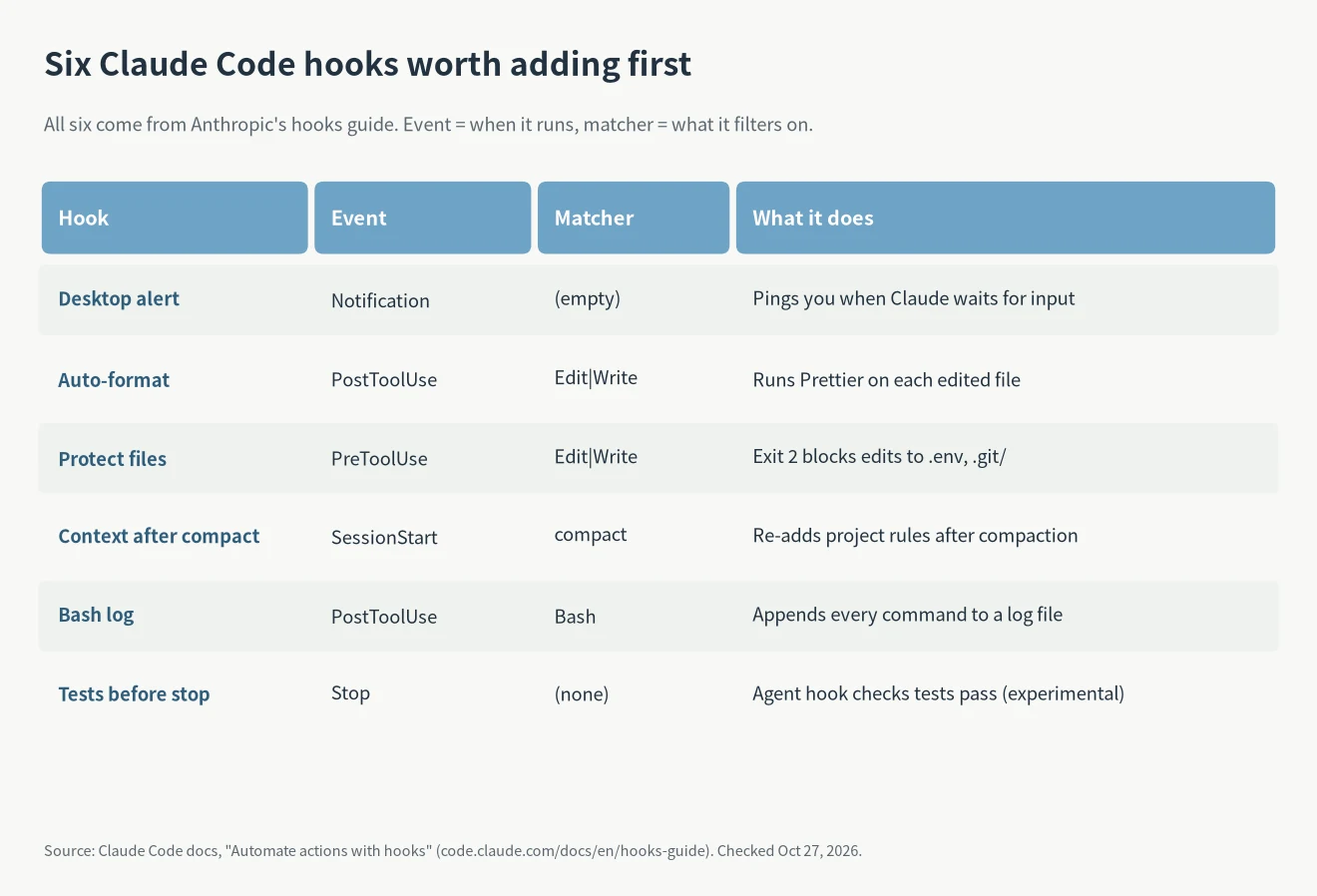
Each hook has three parts: the event (when it runs), the matcher (which tool or case it applies to) and the command. They go under the hooks key in a settings file, and one event can hold several hooks.
1. Desktop alert when Claude is waiting
When Claude needs a permission or is waiting for your reply, you get a system notification instead of watching the terminal. This is the macOS version, for ~/.claude/settings.json. On Linux swap in notify-send; on Windows use a PowerShell message box. The docs show all three.
{
  "hooks": {
    "Notification": [
      {
        "matcher": "",
        "hooks": [
          {
            "type": "command",
            "command": "osascript -e 'display notification \"Claude Code needs your attention\" with title \"Claude Code\"'"
          }
        ]
      }
    ]
  }
}
An empty matcher fires on every notification type. Use permission_prompt to get pinged only for approvals, which fires after the prompt has waited about six seconds. idle_prompt fires when Claude has finished and you haven’t typed for about 60 seconds. If nothing shows up on a Mac, Script Editor probably lacks notification permission; turn it on under System Settings > Notifications.
2. Auto-format after every edit
Each time Claude edits or writes a file, Prettier runs on that file. Put it in the project’s .claude/settings.json so the whole team gets it (official example). It needs jq installed.
{
  "hooks": {
    "PostToolUse": [
      {
        "matcher": "Edit|Write",
        "hooks": [
          { "type": "command", "command": "jq -r '.tool_input.file_path' | xargs npx prettier --write" }
        ]
      }
    ]
  }
}
It only covers the Edit and Write tools. Files that Claude changes through a Bash command won’t trigger it; the docs suggest a FileChanged hook for that.
3. Protect .env and lock files
This is the one I’d add first. PreToolUse runs before the tool does. If the script exits with code 2, the edit is blocked and whatever the script wrote to stderr goes back to Claude as feedback (official example). Save the script as .claude/hooks/protect-files.sh and make it executable with chmod +x:
#!/bin/bash
# .claude/hooks/protect-files.sh
INPUT=$(cat)
FILE_PATH=$(echo "$INPUT" | jq -r '.tool_input.file_path // empty')
FILE_PATH="${FILE_PATH//\\//}"
PROTECTED_PATTERNS=(".env" "package-lock.json" ".git/")
for pattern in "${PROTECTED_PATTERNS[@]}"; do
  if [[ "$FILE_PATH" == *"$pattern"* ]]; then
    echo "Blocked: $FILE_PATH matches protected pattern '$pattern'" >&2
    exit 2
  fi
done
exit 0
Then register it in .claude/settings.json:
{
  "hooks": {
    "PreToolUse": [
      {
        "matcher": "Edit|Write",
        "hooks": [
          { "type": "command", "command": "\"$CLAUDE_PROJECT_DIR\"/.claude/hooks/protect-files.sh" }
        ]
      }
    ]
  }
}
Edit the PROTECTED_PATTERNS line to change what’s protected. The docs also note that a hook’s deny holds in every permission mode, bypassPermissions included, which makes it a firmer rule than a line in CLAUDE.md.
4. Re-inject context after compaction
When a conversation gets long, Claude Code compacts it and some details can get lost. A SessionStart hook with the compact matcher puts your key rules back after each compaction (official example). Whatever the hook prints to stdout goes into Claude’s context.
{
  "hooks": {
    "SessionStart": [
      {
        "matcher": "compact",
        "hooks": [
          { "type": "command", "command": "echo 'Reminder: use Bun, not npm. Run bun test before committing.'" }
        ]
      }
    ]
  }
}
Replace the echo text with your own rules, or with a command like git log –oneline -5 to include recent commits. For context you want in every session, the docs suggest CLAUDE.md instead.
5. Log every Bash command Claude runs
The easiest way to check later what Claude actually ran. PostToolUse fires after a command succeeds and appends it to a log file:
{
  "hooks": {
    "PostToolUse": [
      {
        "matcher": "Bash",
        "hooks": [
          { "type": "command", "command": "jq -r '.tool_input.command' >> ~/.claude/command-log.txt" }
        ]
      }
    ]
  }
}
It only logs commands that succeeded. Failed ones need a separate PostToolUseFailure hook.
6. Check the tests before Claude stops
The Stop event fires when Claude finishes responding. An agent hook starts a subagent that runs the tests and sends Claude back to work if they fail (official example). Agent hooks time out after 60 seconds by default; this config raises it to 120.
{
  "hooks": {
    "Stop": [
      {
        "hooks": [
          {
            "type": "agent",
            "prompt": "Verify that all unit tests pass. Run the test suite and check the results. $ARGUMENTS",
            "timeout": 120
          }
        ]
      }
    ]
  }
}
Three caveats. First, Stop has no matcher support and fires every time Claude finishes a response, not only at the end of a task. Second, agent hooks are experimental, and the docs recommend command hooks for production workflows. Third, Claude Code overrides a Stop hook after it blocks eight times in a row with no tool call in between. If you write your own command-based Stop hook, check the stop_hook_active field and exit early when it’s true (docs).
The hook events you’ll actually use
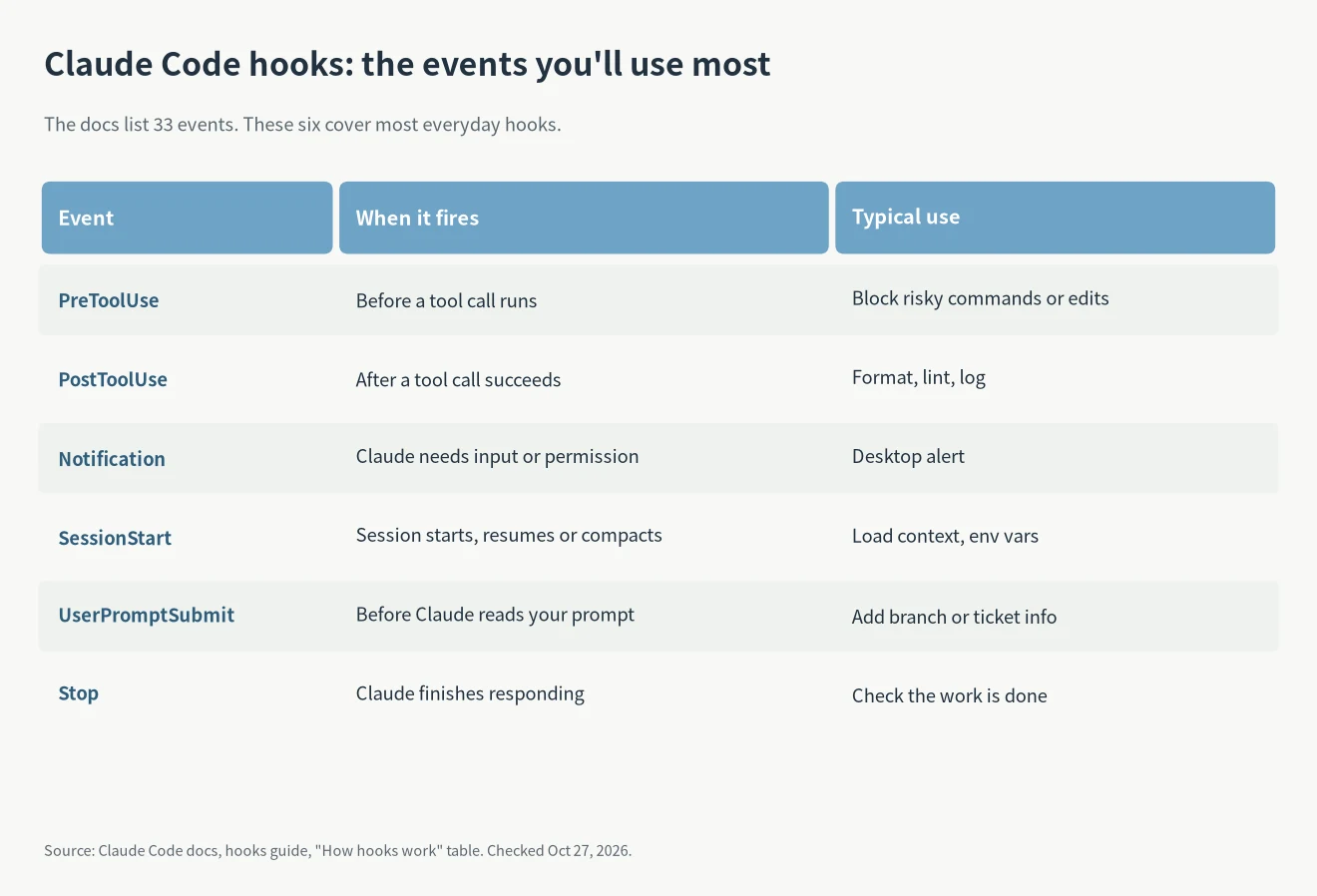
The guide lists 33 events, but the six in the table cover most everyday hooks. PreToolUse can stop an action before it runs. PostToolUse comes after the tool has run, so it can’t undo anything (limitations).
When several hooks match the same event, they run in parallel and their results are merged. For PreToolUse the most restrictive answer wins, in the order deny, defer, ask, allow (docs). So a logging hook and a blocking hook can sit side by side: the block still applies and the log still gets written.
Which file a hook goes in
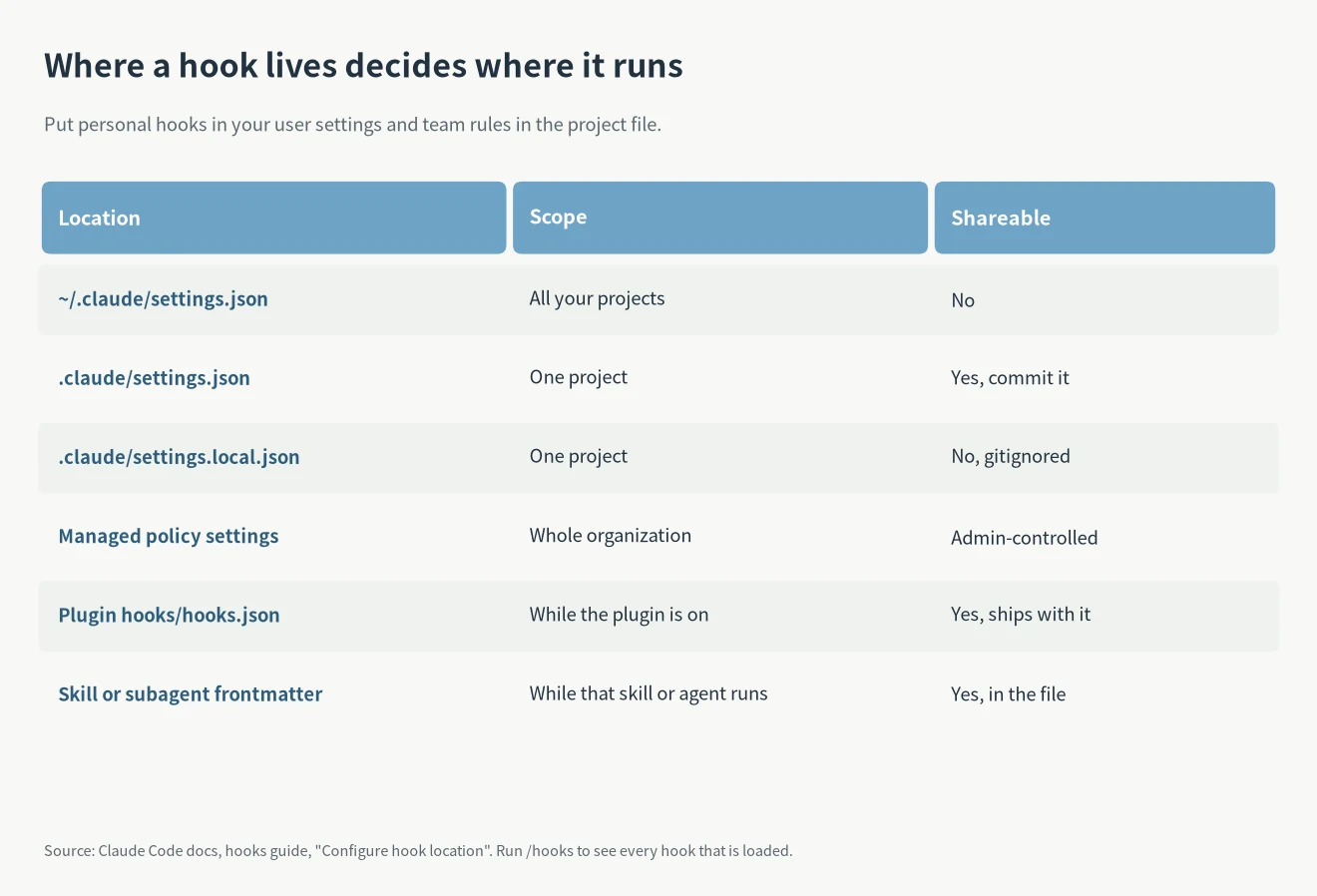
Personal habits such as the desktop alert belong in ~/.claude/settings.json. Team rules such as file protection and formatting belong in the project’s .claude/settings.json, committed to the repo. For the exact paths and which file overrides which, see where Claude Code settings.json lives.
After saving, type /hooks in Claude Code to browse every loaded hook grouped by event (docs). To switch them all off for a while, add “disableAllHooks”: true to your settings.
Hooks can also ship inside a plugin, in its hooks/hooks.json, and stay active while the plugin is enabled. For ready-made plugins see the best Claude Code mods, and to build your own see how to write a Claude Code plugin.
A quick safety check before you paste
The docs are blunt about it: command hooks run shell commands with your full user permissions and can modify, delete or read any file your account can reach (security considerations). Read every line of a hook you copied from the internet before adding it. The same goes for plugins; look at a plugin’s hooks/hooks.json before you enable it.
Command hooks also time out after 10 minutes by default. Formatters and linters are fine, but don’t put anything in a hook that waits for keyboard input.
FAQ
Which Claude Code hooks should I add first?
Start with the PreToolUse hook that protects files. It blocks edits to .env, .git/ and similar paths, and it works in every permission mode. The desktop alert is a close second because you notice the difference right away.
Why isn’t my hook running?
Type /hooks and see whether it appears under the right event. If it doesn’t, look for a stray comma in the JSON or a wrong file path. If it does, check that the matcher matches the tool name exactly, since matchers are case-sensitive. Script hooks also need chmod +x.
Can a hook run a slash command?
No. Command hooks talk to Claude Code only through stdout, stderr and exit codes. They can’t trigger / commands or tool calls (limitations). When a decision needs judgment, use a prompt or agent hook.
All six Claude Code hooks here come straight from the official examples and work on their own. Add one at a time and confirm it with /hooks before adding the next. Matchers can target MCP tools too; for picking the servers themselves see the best MCP servers for Claude Code.