

Run DeepSeek Locally: 3-Step Setup and the Hardware You Need
The honest guide to running DeepSeek on your own GPU, Mac or PC — which models fit, how much memory, and a 3-step setup.
 bufferAbout the author6 min read
So you want to run DeepSeek locally — on your own machine, no API bill, nothing leaving the room. Good news and bad news. The small and mid-size DeepSeek models run fine on hardware a lot of people already own. The thing most folks picture when they say “DeepSeek,” the full 671B, needs a server, not a laptop. My whole angle on this site is helping you spend right on AI, so here’s the honest version with the numbers I’d actually check before spending a cent.
Which DeepSeek you can actually download
First, clear up a mix-up that trips everyone. There are two very different things both called “DeepSeek” on the download pages. The ones normal hardware can handle are the distilled R1 models — 1.5B, 7B, 8B, 14B, 32B and 70B — which are Qwen and Llama models retrained on DeepSeek-R1’s reasoning. They’re genuinely useful and small. They are not the real R1.
The real open weights — DeepSeek-V3, V3.1 and the full R1 — are 671B-parameter Mixture-of-Experts models. The newest frontier ones, V4-Pro and V4.1-Flash, are listed as cloud models on Ollama, i.e. server-scale, not a casual download. You can see all of this on the Ollama library and on Hugging Face. So when we talk about how to run DeepSeek locally on a normal PC or Mac, we’re really talking about the distilled sizes.
What it takes to run DeepSeek locally: memory first
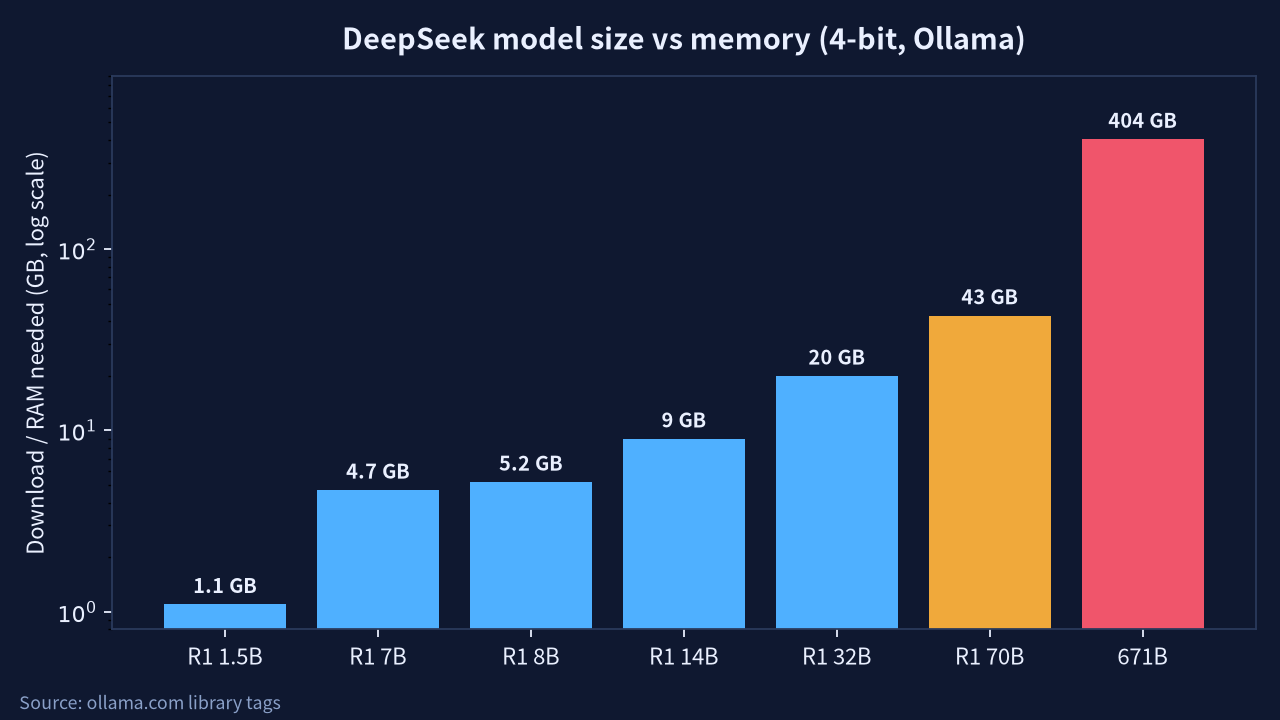
The number that decides everything is memory — VRAM on a GPU, or unified memory on a Mac. Rough rule: at 4-bit (the q4_K_M files most people use), a model needs a bit more than its file size in memory, plus headroom for the context window. The file sizes below are straight off the Ollama tags, so they’re what actually lands on your disk.
| Model (4-bit) | Download / memory | Comfortable on |
|---|---|---|
| DeepSeek-R1 1.5B | 1.1 GB | Almost anything, even a phone-class GPU |
| DeepSeek-R1 7B | 4.7 GB | 8 GB GPU / 16 GB Mac |
| DeepSeek-R1 8B | 5.2 GB | 8 GB GPU / 16 GB Mac |
| DeepSeek-R1 14B | 9.0 GB | 12–16 GB GPU / 24 GB Mac |
| DeepSeek-R1 32B | 20 GB | 24 GB GPU / 32–48 GB Mac |
| DeepSeek-R1 70B | 43 GB | 48 GB GPU(s) / 64–128 GB Mac |
| Full 671B (V3.1 / R1) | 404 GB (q4), 713 GB (q8) | Multi-GPU server only |
Two honest caveats. Bump the quantization to 8-bit and the sizes roughly double. And a long context eats extra memory on top — the model file is the floor, not the ceiling.
Hardware tiers: what fits where
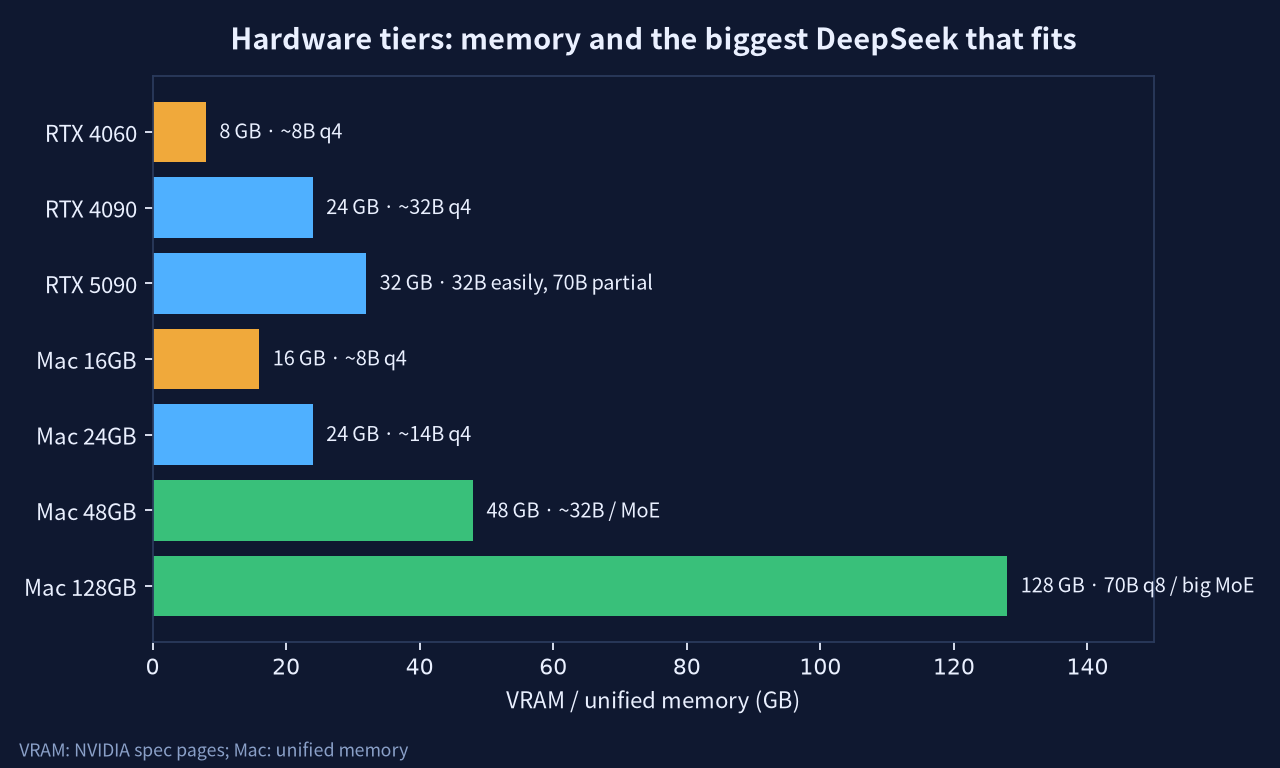
On the GPU side, the number that matters is VRAM: the RTX 4060 has 8 GB, the RTX 4090 has 24 GB, and the new RTX 5090 has 32 GB of GDDR7. So an 8 GB card tops out around an 8B model, a 24 GB 4090 handles 32B at 4-bit, and a 5090 does 32B with room to spare and can start poking at 70B.
Macs play a different game: the unified memory is shared with the GPU, so a 32 GB or 48 GB Mac can hold models a same-priced PC GPU can’t, just slower. If you’re choosing a Mac for this, I went deep on exactly how much memory to buy in my buy-a-Mac-now-or-wait guide — the short version is 24 GB is my floor and 48 GB is the sweet spot for local AI.
The quick setup path
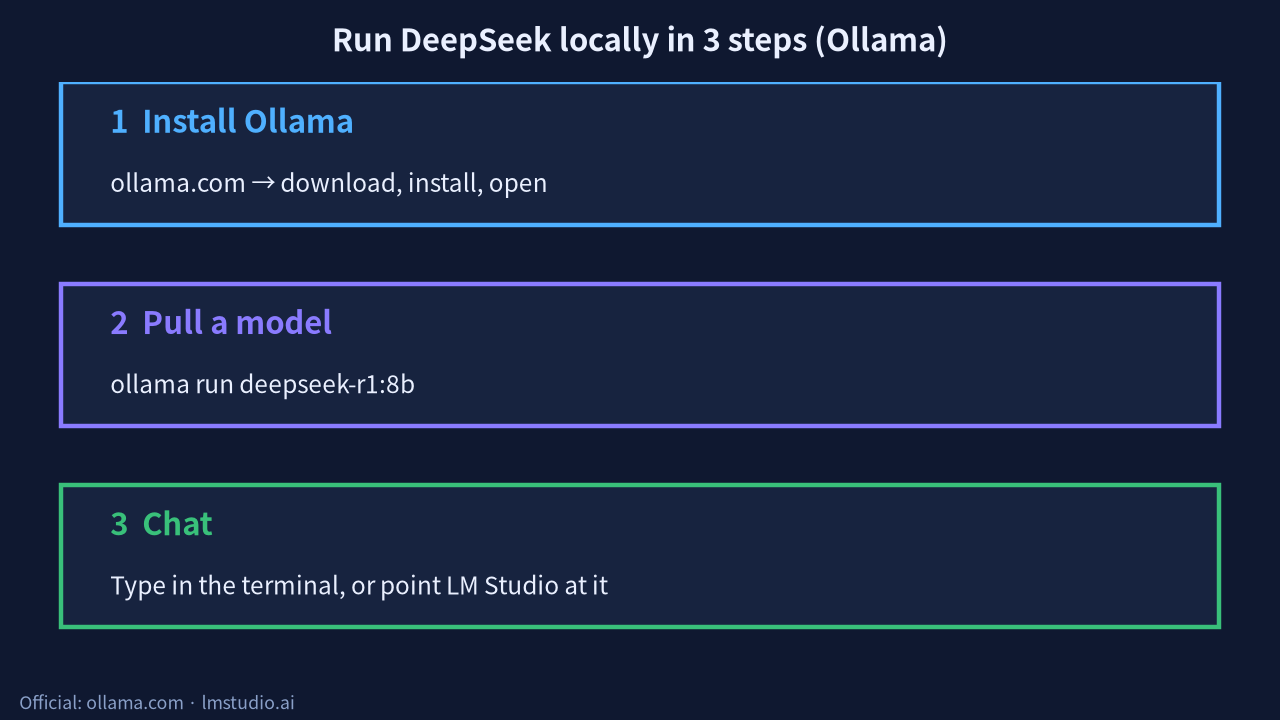
You don’t need to touch Python. Two tools cover almost everyone. Ollama is the one-liner route: install it, run ollama run deepseek-r1:8b, and you’re chatting in the terminal. LM Studio is the same idea with a friendly GUI and a model browser, which is nicer if the command line isn’t your thing. Both are free and both are how I’d tell a friend to run DeepSeek locally for the first time.
Honest limits
Here’s the part the hype skips. The distilled models are good, but they are not the full R1 — on hard reasoning they’re a clear step down. And the real 671B is genuinely out of reach at home: 404 GB at 4-bit means a rack of GPUs or a very expensive maxed-out Mac cluster, and even then it’s slow. I’m not going to quote you tokens-per-second because I haven’t benchmarked these on every box, and anyone who gives you one clean number for “DeepSeek speed” is hand-waving. The trick to run DeepSeek locally and enjoy it is simple: pick a model that fits your memory with headroom and it’ll feel fine; cram one that barely fits and it’ll crawl.
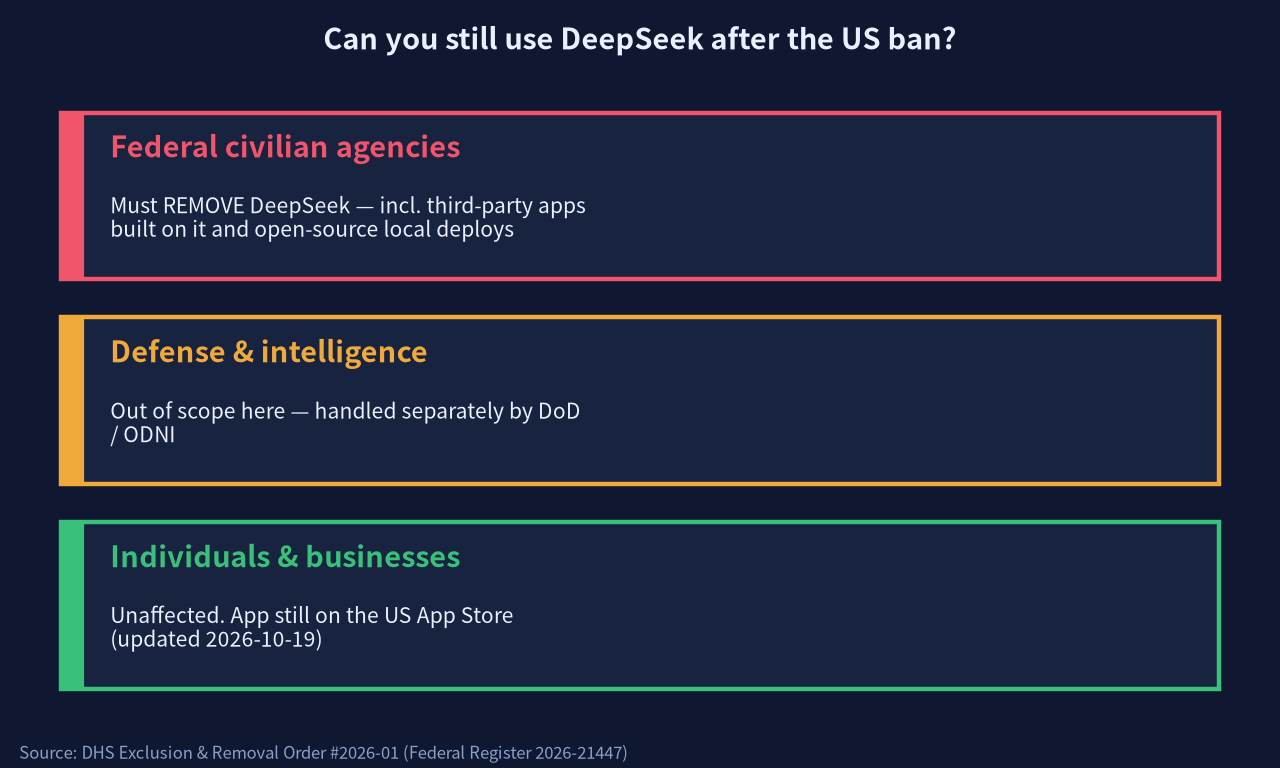
Can you still use DeepSeek after the US ban?
This comes up every time now, so: yes, if you’re an individual. On October 19, 2026 (Beijing time) the US published a DHS order — signed back on July 24 — telling federal civilian agencies to stop buying DeepSeek and rip it out of their systems. It even covers third-party products built on DeepSeek and open-source local deployments inside those agencies. Defense and intelligence systems are handled separately and aren’t in this order.
What it does not do is touch you. Private people and businesses aren’t covered, and the app was still live on the US App Store (last updated October 19). One quirk worth knowing: the 60-day window to request an exception ran from the July signing, so it had already closed (around September 22) before the order was even made public. You can read the primary document in the Federal Register.
So, what I’d do
If you just want to try it, install Ollama and pull the 8B tonight — it fits almost anything. If local AI is real work, aim for 24–32 GB of VRAM or a 48 GB Mac and live in the 14B–32B range. Leave the 671B dream to people with server budgets — for everyone else you can run DeepSeek locally very happily in that mid range. And if the hardware math stops making sense, a subscription is often the cheaper answer — I compared them in my AI subscription and API price comparison. For the bigger picture on why DeepSeek keeps pushing cheaper, see my piece on DeepSeek, Huawei and cheaper AI.
Written October 20, 2026 (Asia/Shanghai). Model sizes from the Ollama library; GPU memory from NVIDIA spec pages; ban details from the Federal Register. No speed claims are my own benchmarks.
Running Llama on a Mac: the questions I keep getting
Can you run Llama on a Mac, even a MacBook Air or Mac mini?
Yes. Same rules as above, because the distilled DeepSeek-R1 8B and 70B are literally Llama models underneath. Memory decides it: a 16 GB Mac is fine for the 7B–8B tier, and 70B wants 64 GB or more. Air, mini or Pro matters less than how much unified memory you bought.
How do I run Ollama on a MacBook?
Install Ollama from ollama.com, open Terminal, run ollama run with the model tag, done. That’s the whole thing. If Terminal makes you nervous, LM Studio does the same with buttons.
What about llama.cpp on macOS?
Works well. The llama.cpp README calls Apple silicon “a first-class citizen”, optimized through Metal and Accelerate. It’s more hands-on than Ollama, so I’d only bother if you want to tune things yourself.
More on this: more AI hardware guides and more DeepSeek guides.