
Remove Ads on Android TV With Claude Code: 5 Steps, No Root, Reversible
 bufferAbout the author9 min read
You paid for the TV. The ads apparently came free. If you want to remove ads on Android TV sets like Xiaomi, TCL or Sony without rooting anything, there’s an open-source project doing the rounds this week called CleanYourTV, and it’s built to be driven by Claude Code. I read the whole repo before writing this. One thing up front, though: I haven’t run it on my own TV. Every step below follows the project’s README and PROMPT.md, and where other people got burned, I’ll tell you.
Where this came from
On October 17, Gathin (@gathint) posted that he’d vibe coded his parents’ TV. It was showing a sponsored ad before you could even get to Netflix. He gave Claude Code the model number, it found the TV on Wi-Fi, switched off a pile of preinstalled stuff and wrote a new home screen that looks a lot like an Apple TV. The replies filled up with other people’s TV models. A lot of those replies became the per-model lists in the repo. That’s the whole pitch, really: remove ads on Android TV by letting an agent do the boring ADB work.
The repo was called tv-vibehack until October 19, and old links still redirect. It’s MIT licensed.
What CleanYourTV actually does
Android TVs have the same debug bridge (ADB) as Android phones. You allow your computer once on the TV, and the rest is standard Android tooling, which is why this is one of the few ways to remove ads on Android TV without root. According to the README the assistant does three things: it backs up the package list and settings, it disables the manufacturer’s telemetry, ad services, content rows and preloaded junk with pm disable-user, and it installs a small launcher (com.gathin.tvhome, about 300 KB) and makes it the default Home.
The important word is disables. Nothing is flashed, rooted or uninstalled, which is the whole reason you can undo it later. On the author’s parents’ set, a Xiaomi Mi TV 4A on Android TV 10, that came to twenty-odd preinstalled packages: Xiaomi telemetry, PatchWall content rows and promos, a “TV Manager” cleaner, plus a fair few Google ones, like the stock launcher and Google’s recommendation services. So not all of it was Xiaomi’s, whatever the viral tweet said.
Everything runs over Wi-Fi on port 5555. No cable. There’s also no prebuilt APK: the launcher gets built on your own machine with a one-line script. Mildly annoying. I’d still rather have it that way.
Will it work on your TV?
Short version from the README: anything running Android TV or Google TV. The repo has tested lists for 66 TVs from 25 brands. TCL and Xiaomi have 14 each, Sony 9, Philips 4, Hisense 3, CHiQ and Skyworth 2 each, and then a long tail with one list apiece, including Chromecast with Google TV and the NVIDIA Shield.
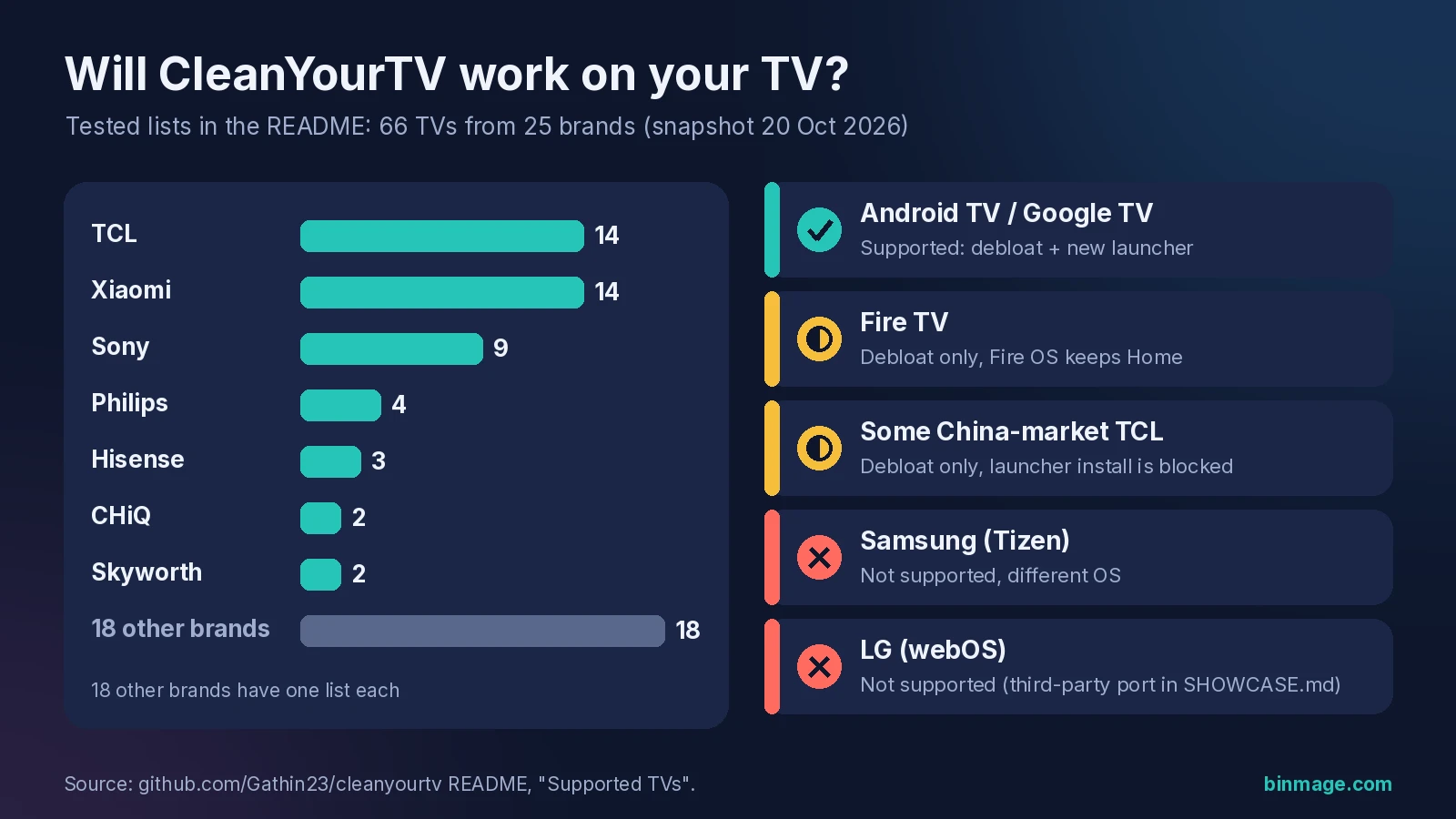
Samsung (Tizen) and LG (webOS) are out, they run different systems. Fire TV only gets the debloat half, because Fire OS won’t hand Home to a third-party launcher, and PROMPT.md is even blunter and says it won’t work on Fire TV. Some China-market TCL sets refuse to install any launcher at all. Their list headers say so.
If your exact model is in examples/, nice, somebody already did the homework. If it isn’t, the prompt has the assistant work out the bloat on your set and ask you before it touches anything you might use. That’s slower, and honestly that’s where I’d be most careful about trying to remove ads on Android TV hardware nobody has mapped yet.
Read this first: the risks
The README’s FAQ literally asks “Can it brick the TV?” Its answer: nothing is flashed or deleted, the risk is disabling something the TV leans on, so lists go in small batches with a restore script ready. Fair enough. Trying to remove ads on Android TV this way still isn’t risk-free, and the issue tracker shows what “leans on” means in real life.
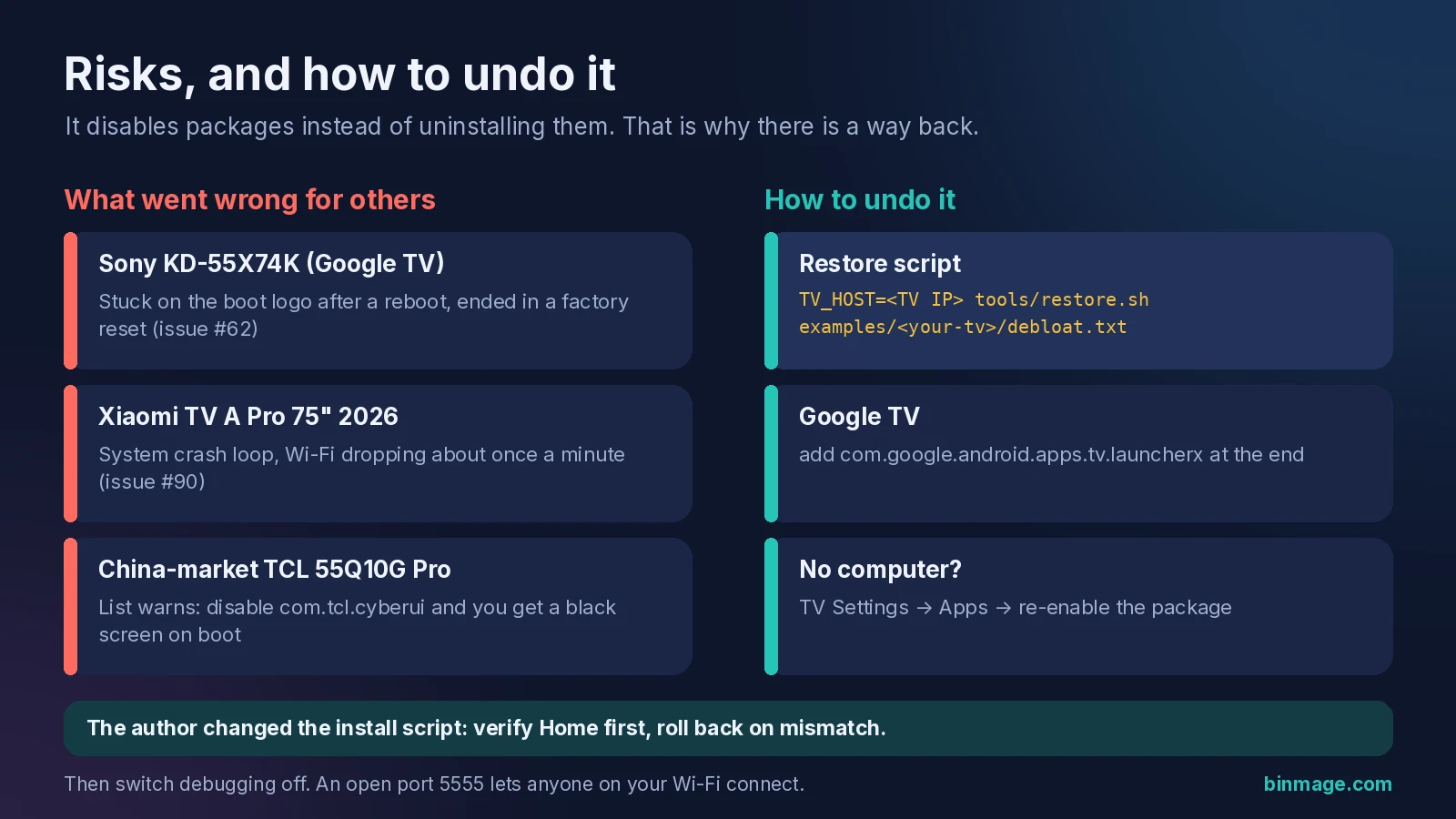
A Sony KD-55X74K owner (Google TV) got the new launcher running, rebooted, and the TV sat on the boot logo for more than ten minutes with ADB offline. It ended in a factory reset (issue #62). A Xiaomi TV A Pro 75″ 2026, also Google TV, went into a system crash loop after the stock launcher was disabled and dropped Wi-Fi about once a minute (issue #90). The author apologized and changed the install script: it now starts the new launcher first, checks that Home really lands on it, and rolls back if it doesn’t.
The usual culprit on newer Google TV sets is the setup wizard (setupwraith), which grabs Home once the stock launcher is gone. Disabling it can also delete the Wi-Fi network you saved during first setup, which knocks the TV offline mid-job. The README explains how to check that first. And the list for the China-market TCL 55Q10G Pro has a blunt warning: disable com.tcl.cyberui and you get a black screen on boot.
Last bit of fine print: MIT means “AS IS, WITHOUT WARRANTY”. If it goes sideways, it’s your evening, not the author’s. If you’ve got an old TV in the bedroom, I’d practise on that one before the big one in the living room.
How to remove ads on Android TV, step by step
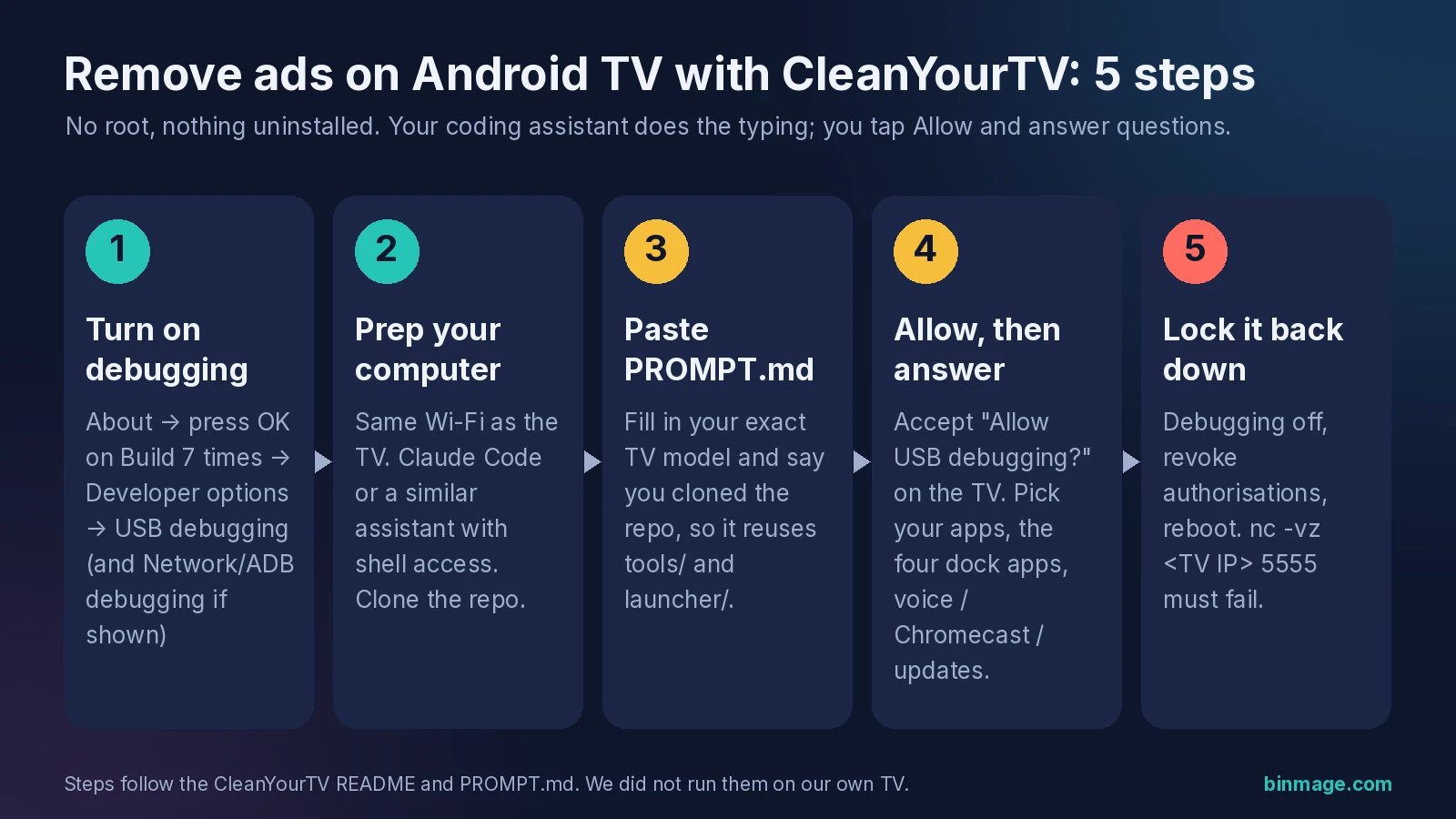
Here’s how to remove ads on Android TV in the order the README lays out. If you only remember one step, make it the fifth.
- Turn on debugging on the TV. Settings → Device Preferences → About → press OK on Build seven times → back → Developer options → USB debugging on. If you see a Network or ADB debugging toggle, turn that on too. Keep the TV on. PROMPT.md adds a gotcha: some boxes cut power to their USB port while USB debugging is on, so a USB speaker or drive plugged into it goes quiet until you switch debugging off again.
- Set up your computer. It has to be on the same Wi-Fi as the TV, with Claude Code or a similar coding assistant that has shell access. Clone the repo (
git clone https://github.com/Gathin23/cleanyourtv) and start the assistant in that folder. Building the launcher needs JDK 17 and Android SDK platform 34; on macOS that’sbrew install openjdk@17 android-commandlinetoolsand thensdkmanager "platforms;android-34" "build-tools;34.0.0". On Windows, Android Studio covers it, and every script has a PowerShell twin. - Paste PROMPT.md into the assistant and fill in your exact TV model. Mention that you cloned the repo, so it reuses
tools/andlauncher/instead of writing them from scratch. - Allow the connection, then answer its questions. Accept “Allow USB debugging?” on the TV when it pops up. Then you get a short checklist: which apps you use, which four go in the dock, and whether to keep the voice assistant, Chromecast and updates. After that it backs up, disables in small batches, builds and installs the launcher, and checks each step with screenshots pulled from the TV. The README says about fifteen minutes with the repo as context.
- Lock it back down. On the TV: Developer options → turn USB debugging and Network/ADB debugging off, and revoke the USB debugging authorisations. Reboot. Then from your computer,
nc -vz <tv ip> 5555must fail. Network ADB is plaintext, and on firmware withro.adb.secure=0anyone on your Wi-Fi gets a shell. The launcher keeps working without debugging, so there’s no reason to leave it on.
If port 5555 never opens, your TV may only offer Wireless debugging (Google TV sets often do). PROMPT.md covers that: grab the pairing code under Developer options › Wireless debugging › Pair device with pairing code, then adb pair, adb connect and adb tcpip 5555. And if macOS answers adb connect with “No route to host”, that’s Local Network privacy, not your TV. The repo’s pure-Python client, tools/tv.py, sidesteps it.
Rather type it yourself?
You can skip the assistant. The tools only need Python 3. This is the README’s manual path, with the Xiaomi Mi TV 4A list as the example:
python3 -m venv tools/venv && tools/venv/bin/pip install -r tools/requirements.txt
export TV_HOST=192.168.1.50                         # your TV's IP address

tools/venv/bin/python -I tools/tv.py --probe       # model, Android version, firmware
tools/disable.sh examples/xiaomi-mi-tv-4a/debloat.txt
TV_HOST=192.168.1.50 launcher/build-and-install.sh
Swap in your own model’s folder. Read the header of its debloat.txt before you run anything, that’s where contributors leave the “do not touch this one” notes and the right restore command.
How to undo it
If you remove ads on Android TV and later miss something, this is the way back. Keep the list you applied. Per the README’s restore section, the restore script re-enables exactly those packages, puts the stock launcher back as Home and resets the animation scales:
TV_HOST=<TV IP> tools/restore.sh examples/<your-tv>/debloat.txt                                     # Android TV
TV_HOST=<TV IP> tools/restore.sh examples/<your-tv>/debloat.txt com.google.android.apps.tv.launcherx  # Google TV
It leaves the new launcher installed (remove it in Settings → Apps if you want it gone), and it doesn’t know about packages you disabled outside the list. If your computer can’t reach the TV at all, the TV’s own Settings → Apps page can re-enable packages too. Already stuck on a Google TV? The README’s rescue line is tools/tv.py 'pm enable --user 0 com.google.android.apps.tv.launcherx'.
On firmware updates: most lists disable the update service, so updates only arrive once you turn it back on. If one lands anyway, the README says the worst case is a package coming back, and you run the script again.
Is it worth your evening (and your Claude quota)?
My take: if the ad in front of Netflix makes you grind your teeth and the set runs Android TV or Google TV, probably yes. It’s about the cheapest way to remove ads on Android TV there is. It costs nothing except time and some assistant usage. A long agent session does eat into a Claude plan, though, so if you’re close to your cap, check my Claude and Codex usage-limit tracker first. Running out halfway, with debugging still switched on, would be a silly way to fail.
If you mostly want fewer ads inside apps, the README also mentions Private DNS (Android 9 and newer) pointed at an ad-blocking resolver like AdGuard DNS. It doesn’t remove YouTube ads, and that resolver then sees every DNS query the TV makes. Trade-offs, as usual.
And if you end up enjoying this kind of tinkering, Claude Code plugins are their own rabbit hole. Here’s my list of Claude Code mods I’d actually install.
It’s a bit absurd that the fix to remove ads on Android TV sets you already own is an AI agent and a debug port. But that’s where we are. Back up, go in small batches, close port 5555 when you’re done.
More on this: more AI hardware guides, more Claude guides and AI subscription and API price comparison.