

Claude Code Install: The Easy 2026 Guide for Mac, Windows and Linux
Claude Code install guide checked against Anthropic's docs on Oct 21, 2026: one-line installers for Mac, Windows and Linux, why you likely don't need Node, first login, and nine install errors with fixes.
 bufferAbout the author8 min read
This is the Claude Code install guide I wish I’d had the first time. I checked every command (last checked October 21, 2026) against Anthropic’s own setup page and install troubleshooting page, so nothing here comes from a two-year-old blog post. Spoiler: you probably don’t need Node.js anymore, and half the tutorials still telling you to install Node 18 are just out of date.
One thing before you start. Claude Code only works in the countries Anthropic supports, and it needs a paid plan: Pro, Max, Team, Enterprise, or a Console (API) account. The free claude.ai plan doesn’t include it. If you searched for a free way to install Claude Code, that’s the honest answer, sorry.
Before the Claude Code install: what your machine needs
The official list is short. macOS 13 or newer. Windows 10 version 1809 or newer (or Windows Server 2019+). On Linux, Ubuntu 20.04+, Debian 10+ or Alpine 3.19+. At least 4 GB of RAM, an x64 or ARM64 processor, and an internet connection. Your shell can be Bash, Zsh, PowerShell or CMD.
Node.js is the part that confuses people. The npm package still says it wants Node 22 or newer (I checked: version 2.1.304, published October 19, with engines: node >=22.0.0 on npm). But since spring 2026 the npm package just downloads the same native binary as the official installer, and the claude command doesn’t run on your Node at all. So if you use the native installer, skip Node completely.
Claude Code install commands for Mac, Windows and Linux
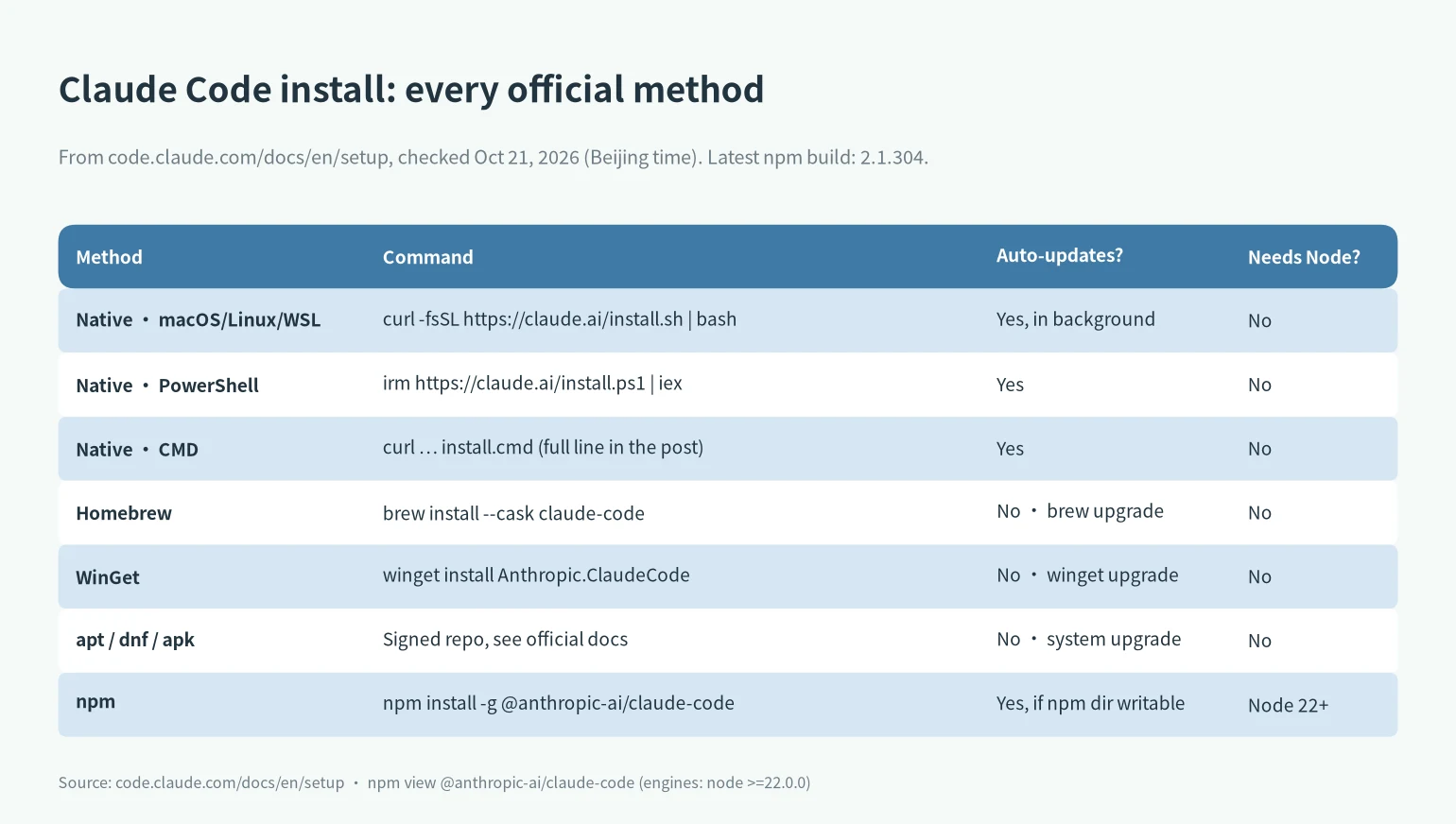
Pick the one line that matches your terminal. Anthropic recommends the native installer because it updates itself in the background. Everything else works, it just won’t auto-update.
macOS, Linux or WSL (in Terminal, iTerm, or your WSL shell):
curl -fsSL https://claude.ai/install.sh | bashWindows PowerShell (the prompt starts with PS C:\):
irm https://claude.ai/install.ps1 | iexWindows CMD (the prompt is just C:\):
curl -fsSL https://claude.ai/install.cmd -o install.cmd && install.cmd && del install.cmdHomebrew: brew install --cask claude-code. That’s the stable channel, which runs about a week behind; claude-code@latest follows the newest release. You update it yourself with brew upgrade.
WinGet: winget install Anthropic.ClaudeCode, and later winget upgrade Anthropic.ClaudeCode.
apt, dnf, apk: there are signed repos for Debian/Ubuntu, Fedora/RHEL and Alpine. The steps are long-ish (import the key, add the repo), so I’d just follow the official section instead of copying from me. The key fingerprint they list is 31DDDE24DDFAB679F42D7BD2BAA929FF1A7ECACE; compare it before you trust anything.
npm, if you really want it:
npm install -g @anthropic-ai/claude-codeNo sudo in front of that. Ever. To upgrade later, run the same command with @latest on the end. The docs specifically warn that npm update -g may not get you the newest version, which is a fun little trap.
A small gripe: the installer shows no progress bar. It looks frozen for a bit. It isn’t. Wait.
First run: check, log in, and see what you’re logged in as
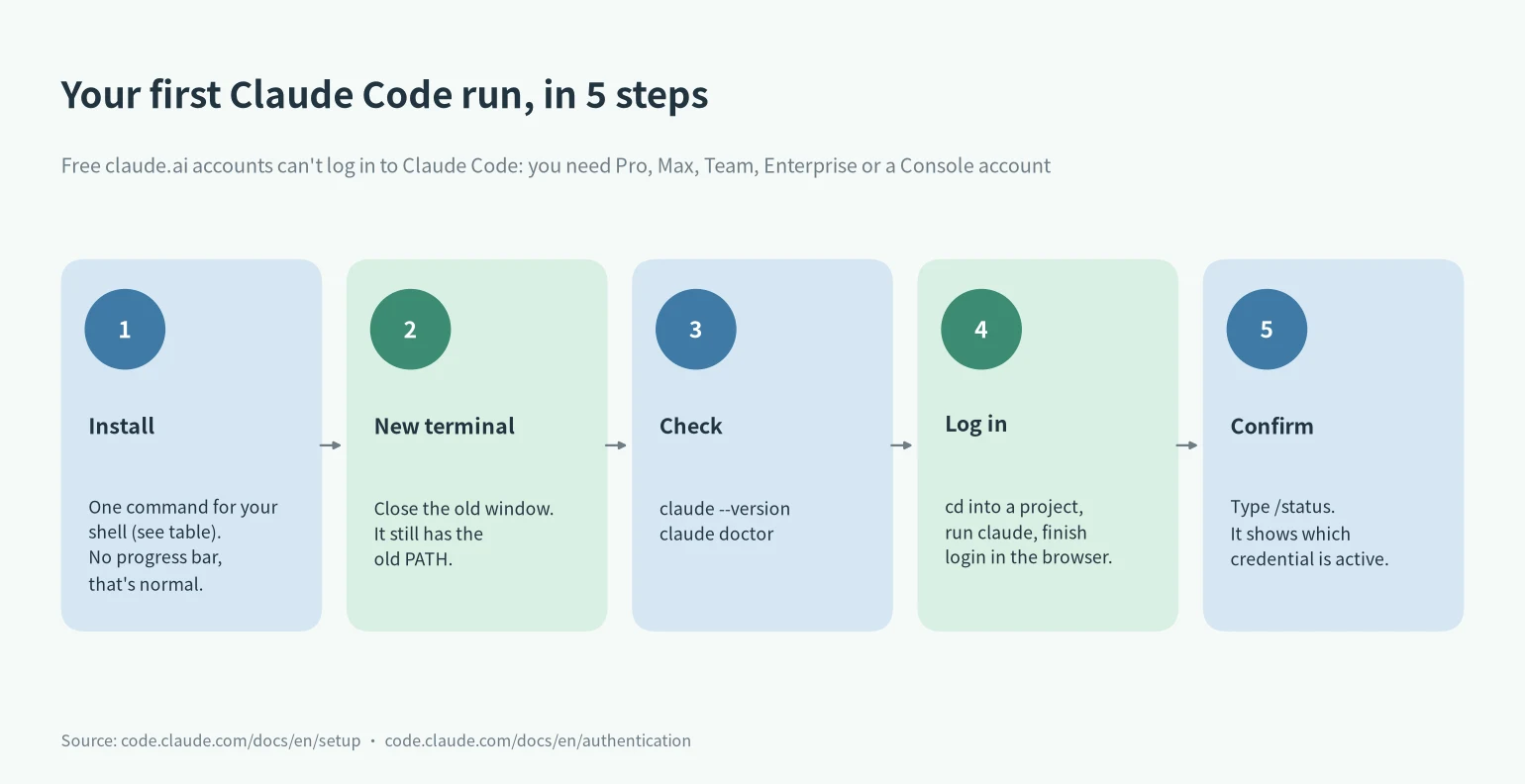
Close the terminal and open a new one. Seriously, the old window still has the old PATH, and this one step fixes a surprising number of “command not found” complaints. Then:
claude --version
claude doctor
You should see something like 2.1.211 (Claude Code) (that’s the example from the docs; yours will be newer). claude doctor is a read-only health check: it tells you if the install is broken, if your settings file has errors, and what to do about it. Then cd into a project folder and run claude. A browser opens, you log in with your claude.ai account, done. If the browser doesn’t open, press c at the login prompt to copy the URL.
Then type /status. I make everyone do this, because Claude Code picks the first credential it finds, and an old ANTHROPIC_API_KEY sitting in your shell profile beats your Pro or Max login (the order is on the authentication page). If /status shows an API key you didn’t expect, that’s the cause of a whole family of weird errors. I wrote those up in the Claude Code errors lookup, along with login problems A1 to A4 (403 after login, WSL and SSH login, repeated “Not logged in”).
Windows, WSL and VS Code notes
Native Windows works fine now. You don’t need admin rights. Git for Windows used to be a requirement; it’s optional these days. With it, Claude Code uses Git Bash for its Bash tool; without it, it runs commands through PowerShell. The one real limitation: native Windows has no sandbox. WSL 2 does. If you go the WSL route, install and start Claude Code inside the WSL terminal, not from PowerShell.
For VS Code, there’s an official extension. It needs VS Code 1.94.0 or newer and any paid Claude plan or a Console account, and usage there comes out of the same pool as the web app and the terminal (VS Code docs). Heads-up: installing only the extension doesn’t put claude on your PATH. If you want the terminal command too, install the CLI separately.
Claude Code install problems I1 to I9
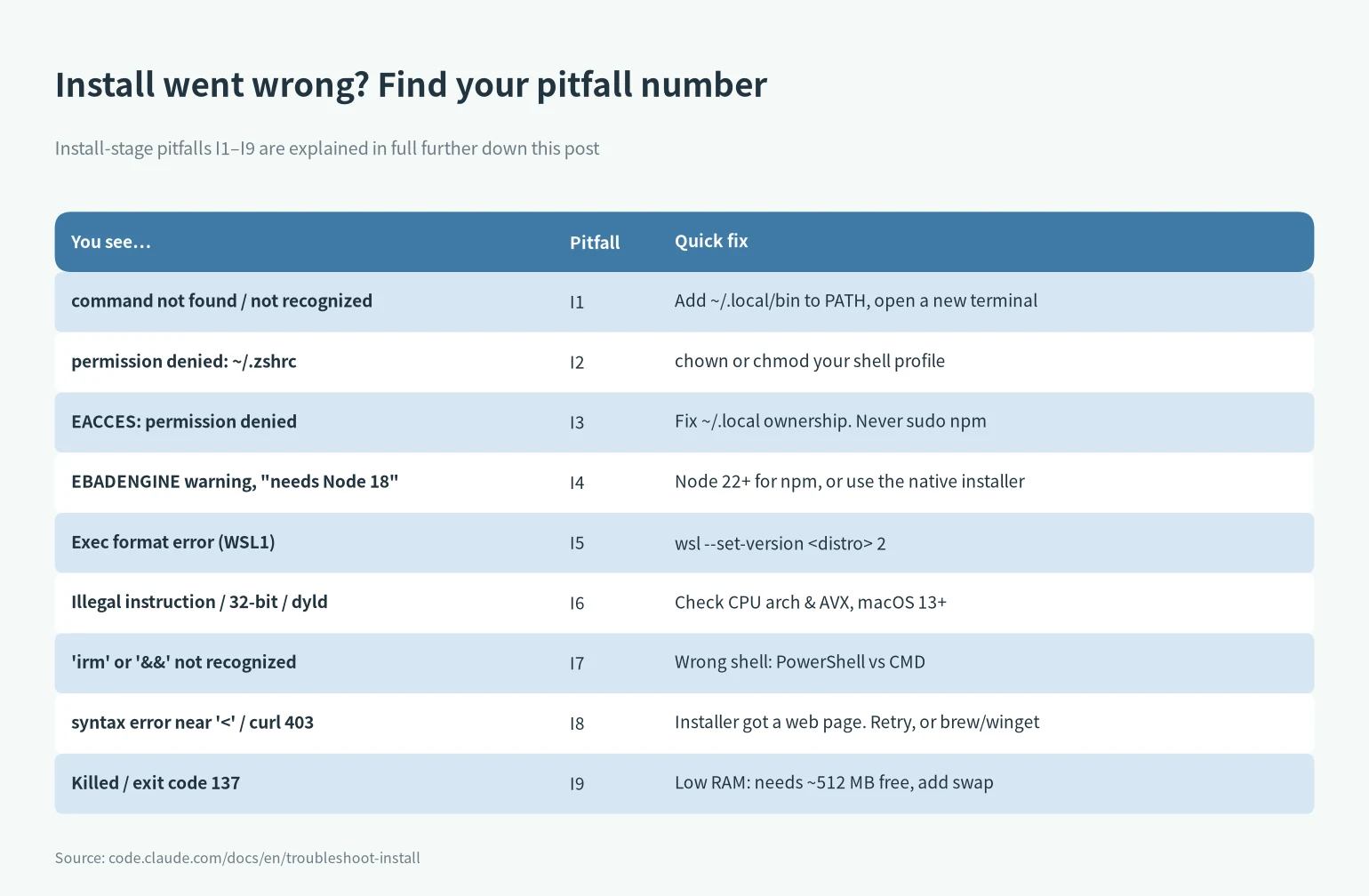
Each install problem gets a number so the errors page can link straight here. All fixes are from the official troubleshooting page unless I say otherwise.
I1. command not found: claude / ‘claude’ is not recognized
The install folder isn’t on your PATH, or the terminal was opened before the install. The installer even says it: Native installation exists but ~/.local/bin is not in your PATH. On macOS with Zsh:
echo 'export PATH="$HOME/.local/bin:$PATH"' >> ~/.zshrc && source ~/.zshrcOn Linux Bash it goes in ~/.bashrc; on macOS with Bash, ~/.bash_profile. On Windows PowerShell:
[Environment]::SetEnvironmentVariable('PATH', "$([Environment]::GetEnvironmentVariable('PATH','User'));$env:USERPROFILE\.local\bin", 'User')Then reopen the terminal (and restart your editor if you use its built-in terminal).
I2. permission denied: ~/.zshrc
Your shell config file is owned by root or read-only. sudo chown $(whoami) ~/.zshrc for the first, chmod u+w ~/.zshrc for the second.
I3. EACCES: permission denied
Some folder Claude Code writes to (like ~/.local/bin or ~/.claude) isn’t writable. The docs suggest sudo mkdir -p ~/.local/bin && sudo chown -R $(whoami) ~/.local. If this came from npm, Anthropic’s advice is to just switch to the native installer. Don’t reach for sudo npm install -g.
I4. EBADENGINE, or a tutorial insists on Node 18
EBADENGINE is only a warning. Below Node 22 npm complains but the install still works, since the binary doesn’t use your Node. Related ones: Error: claude native binary not installed means npm skipped optional packages (--ignore-scripts, --omit=optional, or optional=false in .npmrc), so reinstall without those. ENOTEMPTY: delete the leftover @anthropic-ai/claude-code folder under $(npm root -g) and retry. running scripts is disabled on this system on Windows: Set-ExecutionPolicy -ExecutionPolicy RemoteSigned -Scope CurrentUser, or use the PowerShell installer.
I5. WSL problems
On WSL 1 you can get cannot execute binary file: Exec format error. It’s a known regression; the clean fix is wsl --set-version <DistroName> 2 from PowerShell. If which node points to /mnt/c/..., you’re using the Windows Node; install a Linux one inside WSL. And again: run the Linux install command inside WSL.
I6. 32-bit, Illegal instruction, dyld errors
Claude Code does not support 32-bit Windows usually means you opened “Windows PowerShell (x86)”. Use the normal one. Illegal instruction means the wrong architecture or a CPU without AVX (very old machines or VMs that hide AVX), and there’s no workaround for the native binary. dyld: Symbol not found on a Mac means macOS is older than 13; Homebrew won’t help because it’s the same binary.
I7. ‘irm’ is not recognized / ‘&&’ is not a valid statement separator
Wrong command for the shell. irm is PowerShell, && in that form is CMD, and -fsSL fails in PowerShell because its curl is a different thing. Look at the prompt and pick the matching line from above.
I8. syntax error near unexpected token ‘<‘ or curl: (22) 403
The install URL sent back a web page instead of a script. If the output mentions App unavailable in region, your location isn’t on the supported countries list and I don’t have a workaround for you; there isn’t a legitimate one. In a supported country, the docs say wait a few minutes and retry, or install with Homebrew or WinGet instead.
I9. Killed, exit code 137, and other half-finished installs
Killed on a small VPS means it ran out of memory; the install needs about 512 MB free, so add some swap and retry. curl: (23) or (56): the download got cut off, run it again. Several installs fighting each other (npm plus native plus Homebrew)? Check which -a claude or where.exe claude and keep only one. I keep the native one.
Claude Code install FAQ
Can I install Claude Code for free? You can install it, sure, but you can’t log in with a free claude.ai account. You need Pro, Max, Team, Enterprise or a Console account with API credit.
How do I install Claude Code on Windows 10 or 11? PowerShell: irm https://claude.ai/install.ps1 | iex. No admin needed, Git Bash optional. Windows 10 1809+ is the minimum.
Claude Code install with npm or the native installer? Native. Same binary, but it updates itself and doesn’t care about your Node version.
Ubuntu? Same curl line as macOS, or the signed apt repo. Ubuntu 20.04 is the oldest supported.
Which plan should I buy for Claude Code? That’s a longer question. My take is in Claude Pro vs Max, and if you’re still deciding between tools, Claude Code vs Codex. How the 5-hour and weekly limits work is in Claude usage limits explained.
Skills and plugins? Different topic. I keep a list in best Claude Code mods.
More on this: Claude Code errors lookup · Claude and Codex usage limit tracker · AI subscription and API price comparison · everything in the Claude category