

A Mac running hot while you’re doing almost nothing is annoying. A Mac running hot because somebody else is using it to mine Monero is a different kind of problem. This morning I saw a story that made me go check my own machine, so here’s what I looked at, in the order I’d do it again.
The screenshot that got me started
On October 19, @kimmonismus posted a screenshot of a Reddit thread titled “Claude caught a cryptominer on my Mac whilst building me a temperature monitor app.” The idea is almost too neat: someone asks Claude to build a little app that reads Mac temperature sensors, and while sanity-checking the readings, Claude notices why the numbers look so bad.


According to the screenshots, Claude reported xmrig using about 1175% CPU, “roughly 12 cores”, with the CPU peaking at 112°C. It said the miner ran from /tmp/rigupdater, mined to pool.hashvault.sh, and came back thanks to a randomly named plist in ~/Library/LaunchAgents that ran an encoded script through bash with KeepAlive, dated well before the person built anything. Claude also said it hadn’t killed or removed anything yet. Good call, honestly.
A caveat, and I mean it: all of that comes from the screenshots. I couldn’t find the original Reddit post, so I can’t confirm the numbers, the machine or the timeline. Treat it as a story that’s going around, not something anyone has tested.
It isn’t the only one, though. Last month a user on r/cybersecurity_help wrote that their Mac had XMRig using around 800% CPU while they were working with OpenCode, and later found what looked like an info-stealer too. They were careful to say they weren’t blaming OpenCode itself, just wondering whether something run through the agent could have done it. Nobody in that thread proved how it got there.
That’s the part I keep thinking about. An AI coding agent poking around your system can stumble on malware you never noticed. It can also be the thing that runs npm install on the wrong package. Same agent, same afternoon.
Mac running hot? First, make sure it’s actually a miner
Most of the time, a Mac running hot isn’t infected. Before you go hunting in system folders, rule out the boring reasons. Apple’s own fan-noise page lists Spotlight indexing after you migrate data as a normal reason the fans spin up, and I’d add a few from my own experience:
- Spotlight or Photos still indexing after a migration or a big update. Give it a day.
- A browser with 60 tabs, one of which is an ad-heavy page or a WebGL thing that never stops.
- An external display. On some older Intel MacBook Pros, running the built-in screen plus an external one gets noticeably hotter than either alone.
- An Intel-only app on Apple silicon. It runs through Rosetta (Activity Monitor’s Kind column shows “Intel”), and I’d look there if one app seems hungrier than it should. Apple explains Rosetta here.
- Using a laptop on a bed or pillow. Apple literally says don’t do that.
The tell that a Mac running hot has a miner on it is pretty simple: one process eating multiple full cores, all the time, including when you’re not touching the machine. Miners don’t take breaks.
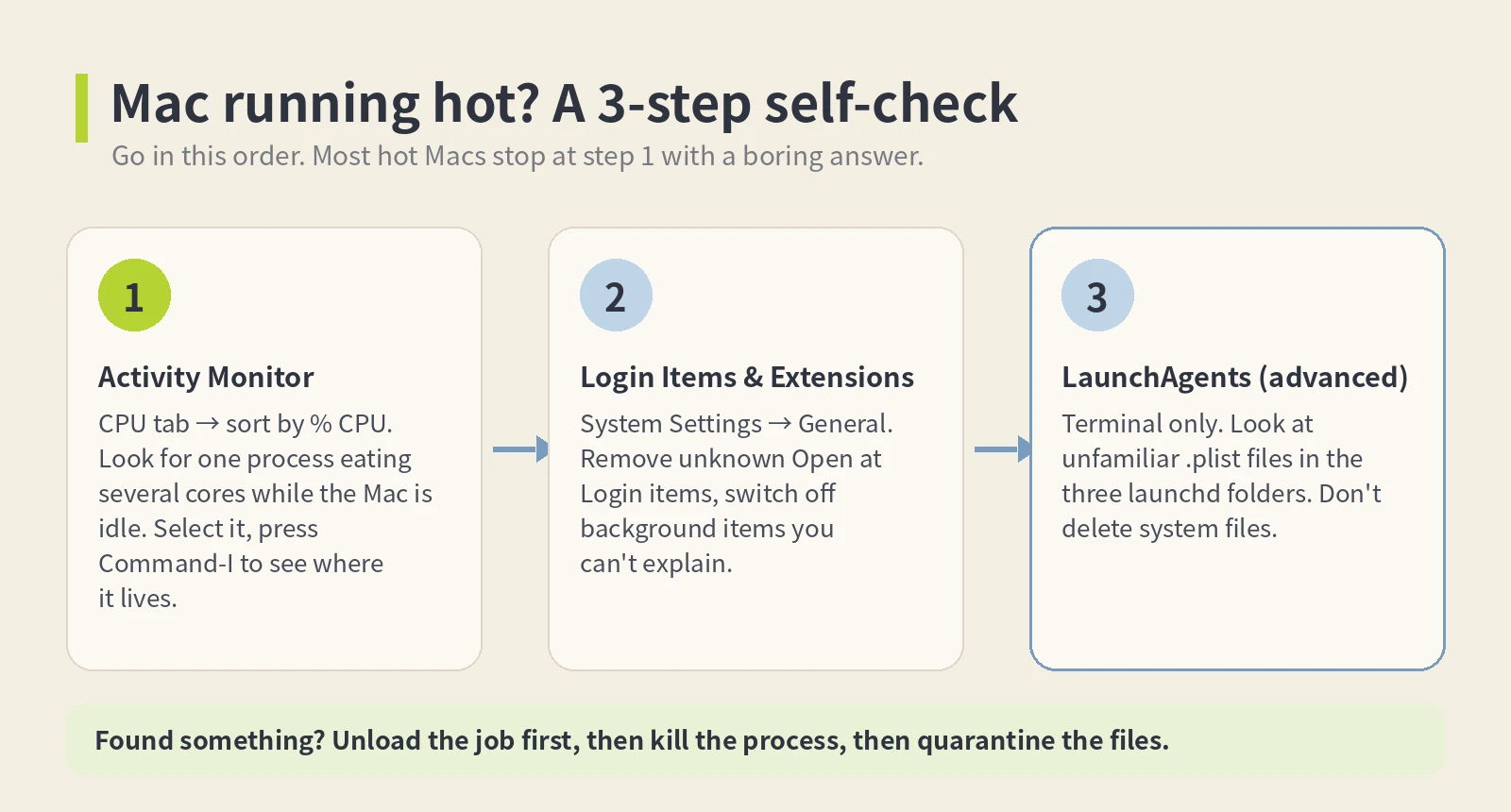
Step 1: Mac running hot? Open Activity Monitor
- Open Activity Monitor (Applications > Utilities) and click the CPU tab.
- Click the % CPU column so the biggest number is on top. Apple’s guide on viewing process info covers sorting and the View menu, and “All Processes” is the view you want.
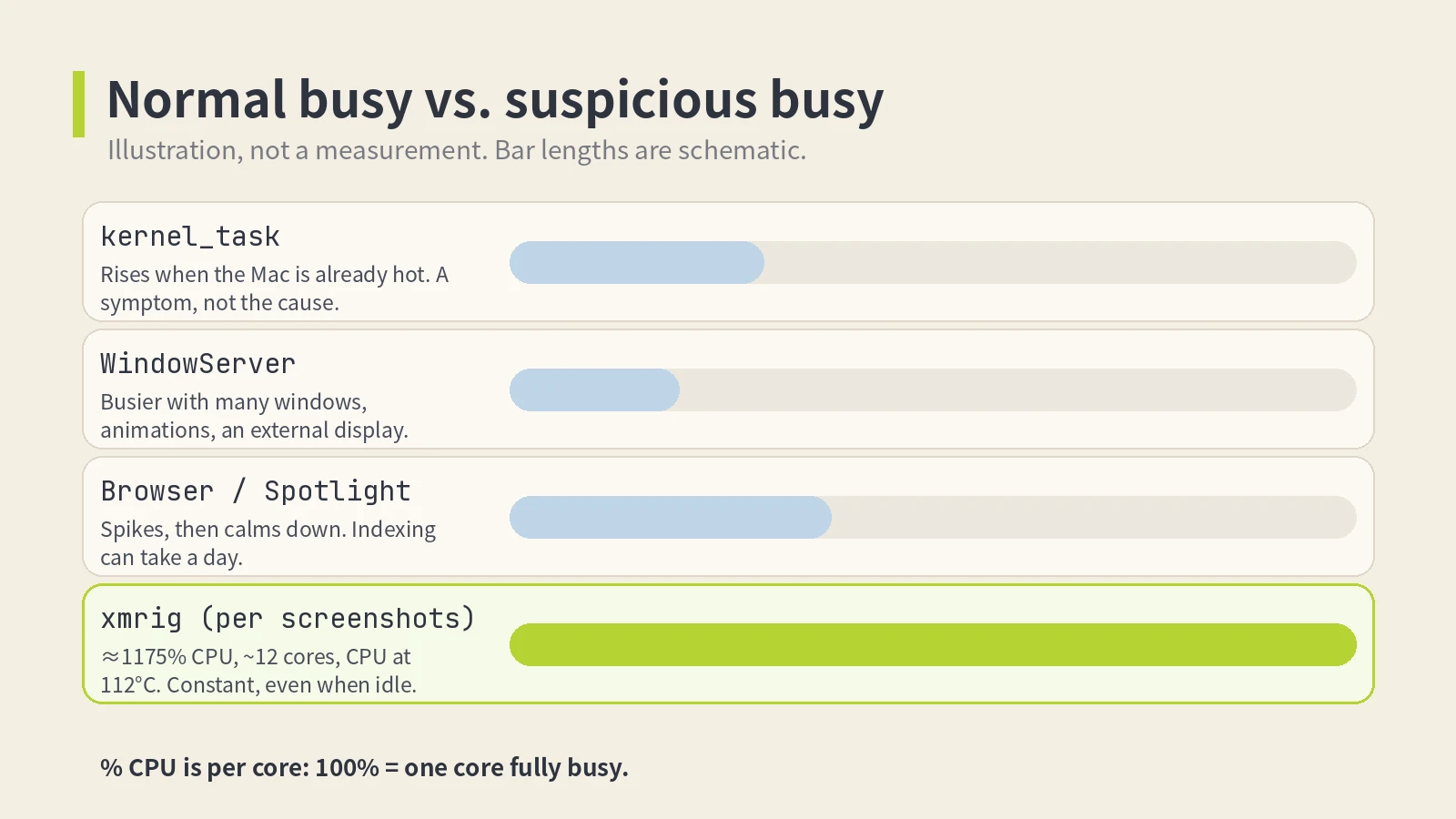
- Remember that % CPU is per core. 100% is one core fully busy, so 800% or 1175% means a whole bunch of cores pinned at once.
- Select anything suspicious and press Command-I (or the info button). The Open Files and Ports tab shows where the binary lives. A process running out of
/tmp, a hidden dot-folder, or something with a random name is a red flag. - Peek at the Energy tab too. Apple describes Energy Impact as a relative number, lower is better, and on laptops the 12 hr Power column helps you spot something that has been busy all day.
Two names scare people for no reason. kernel_task showing high CPU is usually macOS throttling the CPU because it’s already too hot. Apple says it responds to heat, it doesn’t cause it. So with a Mac running hot and a busy kernel_task, look for what’s making the heat. Don’t try to kill kernel_task. WindowServer draws everything on screen, so it gets busy with lots of windows, animations or a high-res external monitor. Annoying, normal.
What’s not normal: xmrig, anything with “rig”, “miner” or “xmr” in the name, or an unfamiliar process sitting at several hundred percent while the Mac is idle. Miners also get renamed to look boring, so don’t rely on names alone. The path and the CPU pattern matter more.
The same thing from Terminal
If you’d rather paste a few lines, these are the ones I use when a Mac running hot starts to look suspicious:
# top 10 processes by CPU (column 3 is %CPU)
ps aux | sort -nrk 3 | head -n 10

# full command line and path for one process
ps -p PID -o pid,%cpu,command

# non-Apple launchd jobs loaded for your user
launchctl list | grep -v com.apple

# what's connected to the internet right now
lsof -i -nP | grep ESTABLISHED
Replace PID with the number from the first command. In the screenshots, the miner was talking to a mining pool, so a weird outbound connection from that same process is a decent second signal.
Step 2: check what starts at login
A miner that dies when you quit it isn’t much of a business, so they almost always set up persistence. Start with the friendly route Apple documents: Apple menu > System Settings > General > Login Items & Extensions. Remove anything under Open at Login you don’t recognize, and look through the background section (called App Background Activity in the newest docs, Allow in the Background on Ventura-era systems) and switch off what you can’t explain.
If something weird happens at startup, Apple’s troubleshooting page suggests holding Shift while you log in to skip login items, or removing them all, restarting, and adding them back one at a time. Tedious, but it works.
Step 3 (advanced): look at LaunchAgents and LaunchDaemons
Fair warning: Apple doesn’t tell regular users to go digging in these folders, so this part is for people comfortable in Terminal. The rule is simple: only look at unfamiliar .plist files, and don’t delete anything that belongs to the system.
These are the three places that matter:
ls -la ~/Library/LaunchAgents
ls -la /Library/LaunchAgents
ls -la /Library/LaunchDaemons

# read one without opening an editor
plutil -p ~/Library/LaunchAgents/com.example.something.plist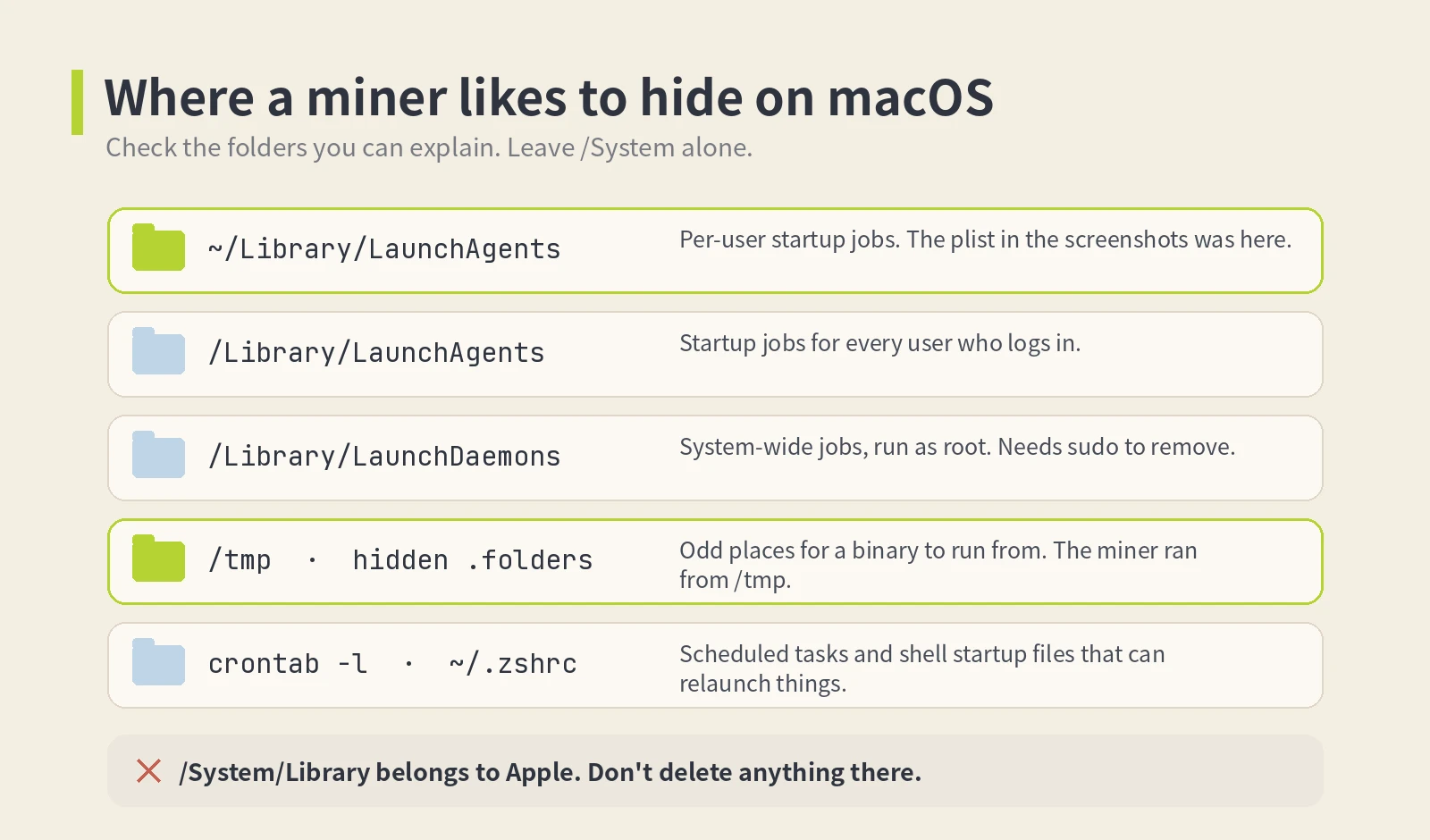
Most entries will be from apps you installed: Google, Zoom, Adobe, your VPN. The suspicious ones look like the case in the screenshots: random-letter names, a ProgramArguments section pointing at /tmp or a hidden folder, bash -c with a long base64 blob, KeepAlive set to true. Apple’s old developer guide on launch agents and daemons explains what these keys do if you want the background.
Removing it without making things worse
Here’s the order I’d follow. Stop the thing that restarts it first, otherwise you kill the miner and launchd happily starts it again two seconds later.
- Write down the plist path and the binary path before you touch anything. Take a screenshot. You’ll want it later.
- Unload the job. For a per-user agent:
launchctl bootout gui/$(id -u) ~/Library/LaunchAgents/NAME.plist. For something in /Library/LaunchDaemons:sudo launchctl bootout system /Library/LaunchDaemons/NAME.plist. - Kill whatever’s still running:
kill PID, or Quit Process in Activity Monitor. - Move the plist and the binary into a quarantine folder on your Desktop instead of deleting them right away. If you’re sure later, delete them.
- Check
crontab -lfor lines you didn’t write, and glance at~/.zshrcand~/.zprofilefor anything that downloads or launches stuff. - Restart, wait ten minutes, open Activity Monitor again. If you’ve still got a Mac running hot and the process is back, something else is relaunching it.
Then the part people skip. Malware that runs as you can read what you can read. The screenshots mention the GitHub login on that Mac being exposed, and the r/cybersecurity_help thread found browser session data. So from another device: change passwords, sign out of active sessions, rotate API keys, SSH keys and tokens that lived on that machine.
When to stop cleaning and just reinstall
If you found a stealer, if the miner keeps coming back, or if you just don’t trust the machine anymore, back up your documents, then erase and reinstall macOS. Copy files back by hand, not with a full migration that drags the problem along. It’s a lost evening. I’d still take that over wondering for months.
macOS isn’t defenseless here. XProtect is built in, uses signatures Apple updates on its own (by default macOS checks daily), and can block and remediate known malware. But it’s signature-based, and a freshly compiled miner launched from a shell script can slip by. For a second opinion, Malwarebytes for Mac has a free scanner. I’d use one reputable scanner, not five random “Mac cleaner” apps, which are their own little genre of problem.
If you use Claude Code, Codex or other agents
I like these tools. I also let them run commands on my laptop, which, said out loud, is a lot of trust. The same goes for plugins: my list of Claude Code mods I’d actually install is all code that runs with your permissions, so the habits below apply there too.
- Actually read what they install. If an agent runs
npm install,pip installorbrew install, check the package name for typos and look it up if you’ve never heard of it. A misspelled package is the classic way bad code gets in. - Turn on the sandbox. Claude Code has a built-in Bash sandbox (on macOS it uses Seatbelt; start with
/sandbox). Codex has sandbox modes likeread-onlyandworkspace-write, and asks before network access in its Auto preset. - Don’t leave agent servers listening on the network without a password. If a tool has a web or remote mode, check how it authenticates before you forget it’s running.
- After a long agent session, run
ls -lt ~/Library/LaunchAgentsand see if anything new showed up. Takes five seconds.
If you run agents for hours a day anyway, I keep a Claude and Codex usage-limit tracker too. A sudden spike in usage you can’t explain is worth a second look, same as a CPU spike.
The funny part of this story is that an AI caught the miner. The less funny part is how easily an AI could’ve installed one. AI on both sides of a security story isn’t new, either: remember the bank attacker who asked AI for résumé help. So keep an eye on what your agents leave behind.
And if your Mac running hot turns out to be Spotlight indexing after all? Great. That’s the best result you can get.